

Open the page
WordPress Admin → FedEx Shipping → Open Shipments Two conditions apply:- The page exists only in Advanced shipping mode. In Instant mode the menu item is not shown at all — that mode has Shipments & Printings instead.
- You need permission to edit WooCommerce orders. Store administrators and shop managers have it by default.
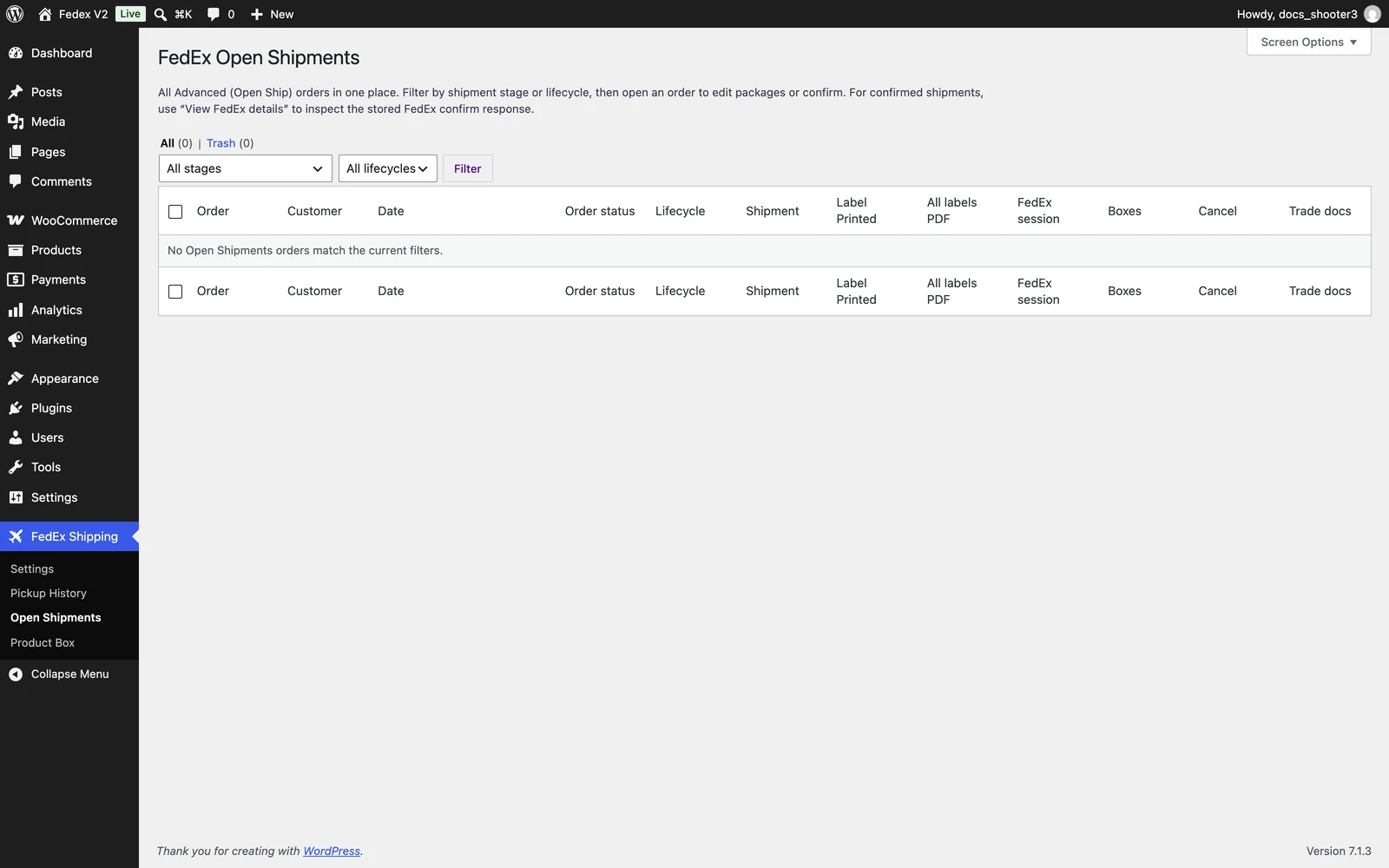 The Open Shipments page — every Advanced-mode order with a FedEx session, with its filters, views, and row actions.
Following an old bookmark while in Instant mode? WordPress refuses the page with the message “Open Shipments is available only when Shipping mode is set to Advanced under FedEx settings.” Switch the mode under WordPress Admin → FedEx Shipping → Settings, on the Shipping tab.
Views: All and Trash
Above the table, two tabs split the list:- All — every non-trashed order with a session. Each tab label shows its count, for example “All (12)”.
- Trash — orders someone moved to the trash from this page. From here you can put an order back or erase it for good.
Filters
Two dropdowns narrow the list; click the Filter button to apply them. Filter by shipment stage — how far the order has travelled:
Filter by lifecycle — the state of the FedEx session itself:
The lifecycle filter is hidden in the Trash view — trashed orders are out of the session workflow anyway.
If nothing matches, the table says “No Open Shipments orders match the current filters.” (or “No Open Shipments orders in the trash.” on the Trash tab).
The table, column by column
Row actions
Hover over a row and the action links appear. What each one actually does: On the All tab:- Edit order — opens the WooCommerce order screen, where the FedEx Open Ship box waits. This is where you adjust packages and click Confirm shipment. The full walkthrough is on Advanced mode (Open Ship).
- View FedEx details — appears once a shipment is confirmed and its FedEx response is stored. Opens the read-only detail view described below.
- Cancel on FedEx — cancels the Open Ship session at FedEx, then clears the session data from the order. A confirmation tells you “FedEx Open Ship session cancelled and local data cleared.” The order itself is not touched. Use this when you will not ship the order with FedEx after all.
- Move to trash (local) — moves the WooCommerce order to the trash. FedEx is not contacted — the session there stays open. You will see “Order moved to trash.”
- Trash after FedEx cancel — cancels the session at FedEx first, then moves the order to the trash. You will see “Order moved to trash (FedEx session cancelled first).” Use this when the order should disappear from your store and from FedEx.
- Restore — puts the order back where it was. You will see “Order restored from the trash.”
- Delete permanently — asks “Are you sure you want to delete?”, then cancels the FedEx session first and erases the order for good. You will see “Order deleted permanently.”
Confirmed orders refuse the cancel and trash actions on this page — a confirmed session has live labels, and the plugin will not undo it in bulk. There is no keep-the-order-but-void-the-labels option in this version.
Bulk actions
Select several orders with the checkboxes, pick an action in the Bulk actions dropdown, and click Apply. Which actions you get depends on the tab:- On the All tab: Move to trash (WooCommerce only)
- On the Trash tab: Restore and Delete permanently
Move to trash (WooCommerce only)
The phrase “WooCommerce only” is the plugin telling you what it will not do. This action moves the selected orders to the trash in your store and nothing else — FedEx is not contacted. The Open Ship session stays open at FedEx exactly as it was; FedEx simply never hears about the trash. That is usually not what you want for a draft you are abandoning, because the session lives on at FedEx. Two cleaner routes exist:- Click Cancel on FedEx on the row first, then trash the order; or
- Use the Trash after FedEx cancel row action, which does both in the right order.
Restore
Puts every selected order in the Trash view back into the list.Delete permanently
For each selected order in the Trash view, cancels the FedEx session first and then erases the order permanently. Like the other bulk tools, it skips confirmed orders.Choose how many rows per page
Click the Screen Options tab at the very top of the screen, change Orders per page (the default is 20), and the table reloads with your choice. The setting is remembered for your account.The FedEx details view (raw data)
Clicking View FedEx details on a confirmed order opens a read-only screen titled Open Ship — FedEx shipment details, with buttons ← Back to Open Shipments and Edit order at the top. In plain words: this is a technical view of the raw FedEx data — handy for support. Nothing on it can be edited. It shows:- Order summary — the order, customer, date, order status, the Open Ship lifecycle, whether it was Confirmed with FedEx, the master tracking number, the Open Ship index, and the saved label files.
- Saved label files — a link to the merged PDF plus a per-package table, and a Download / open all labels (one PDF) button.
- Last FedEx confirm response (full JSON) — a collapsible panel with FedEx’s own confirmation answer, word for word. If support asks for “the confirm JSON”, this is where you copy it from.
- Packages saved on the order (JSON) — the package rows as the plugin stored them.
Advanced mode (Open Ship)
The full click-by-click walkthrough: switch modes, review packages, push to FedEx, and confirm.
Shipments & Printings
The Instant-mode shipments list — view, print, track, cancel, and upload trade documents.