

Sandbox and production, in plain English
The plugin talks to FedEx through one of two doors:- Sandbox is FedEx’s practice environment. Prices are test prices. Labels are test labels. A sandbox label looks real, but it never moves a real package, and nothing is ever billed to your FedEx account.
- Production is the real thing. A label created in production is a real shipment on your FedEx account. FedEx bills your account for it, and a driver can actually pick the package up.
Sandbox labels never move real packages. If a test label is ever attached to a real order by mistake, no shipment exists at FedEx and nothing is charged. This is exactly why testing in sandbox first is the recommended path.
Before you switch: a quick checklist
Work through this table first. Every row links to the page that covers it.Get your production keys
FedEx does not hand out production keys automatically. You request access, FedEx reviews it, and then the production keys become available in the same developer project your test keys live in.1
Sign in to the FedEx Developer Portal
Go to the FedEx Developer Portal and sign in with your FedEx account.
2
Request production access
Open the project you created your test keys in and follow the portal’s flow to request production (live) access. FedEx reviews the request and approves it on their side.
3
Wait for FedEx's approval
Approval typically takes 3–5 business days. This is FedEx’s own process, and their timeline can change.
4
Create your production keys
Once approved, return to the same project and create or copy the production API key and secret key. Treat the secret key like a password: FedEx shows it only once, so copy it straight into a password manager.
FedEx updates this portal regularly. If the screens look different from the steps above, follow the portal’s current flow — the exact button names may differ, but the outcome you need is always the same: a production API key, a production secret key, and your real FedEx account number.
Switch the plugin to production
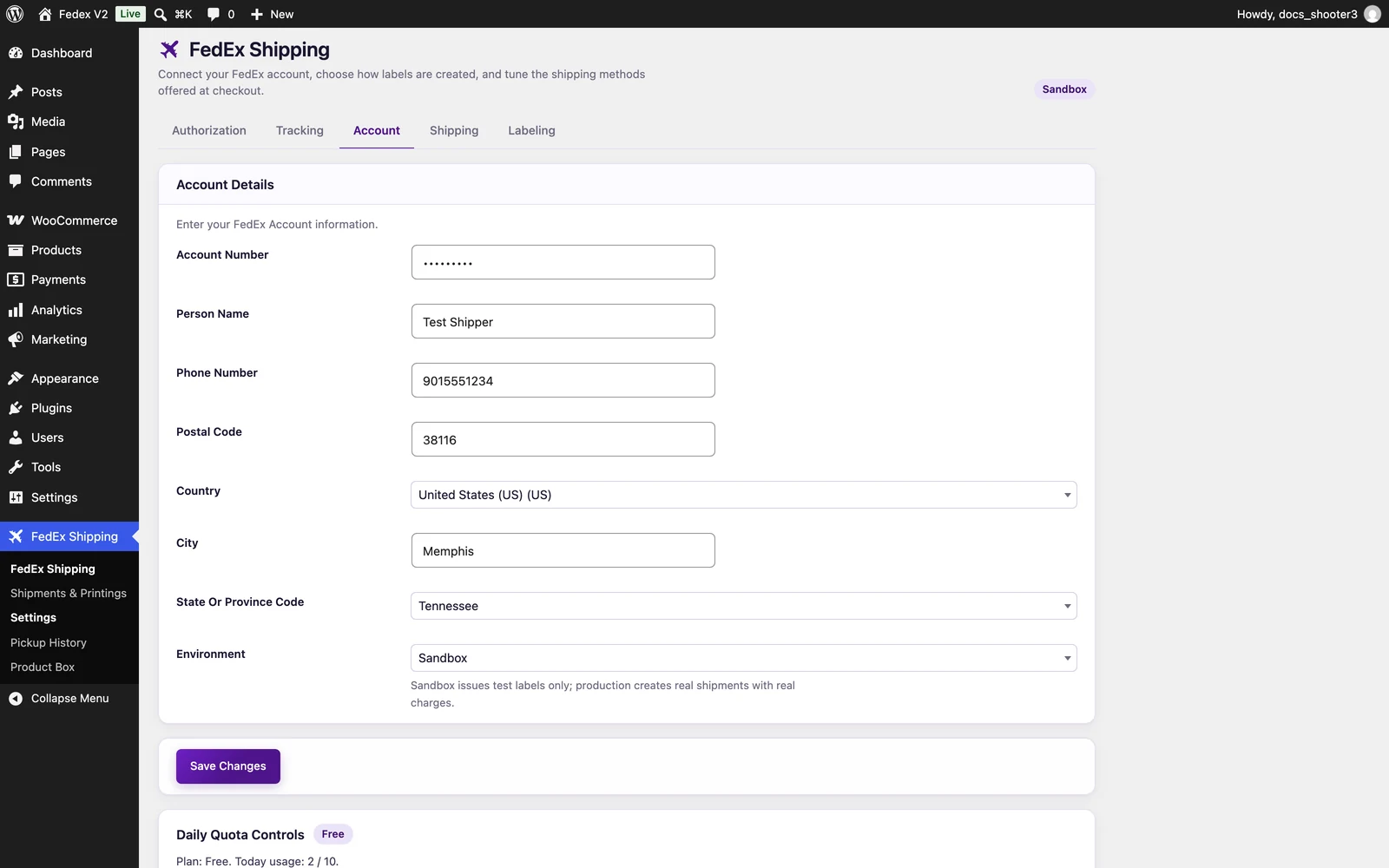 The Settings page, Account tab. The Environment select is the last field of this tab, below the address fields.
1
Open the settings page
WordPress Admin → FedEx Shipping → Settings
2
Open the Account tab
Click Account in the tab row at the top. The page shows the account fields.
3
Select Production
Scroll to the bottom of the tab. In the Environment select, choose Production. The field’s own help text says the same thing this page does: sandbox issues test labels only; production creates real shipments with real charges.
4
Check your account number
While you are on this tab, make sure Account Number holds your real FedEx account number. Test and real account numbers are not interchangeable — FedEx rejects a real account number in sandbox and a test account number in production.
5
Save
Click Save Changes at the bottom of the page. A green confirmation appears.
The expected result is visible right away: the badge at the top of the Settings page changes from a purple Sandbox badge to an orange Production badge. That badge always shows the environment your store is currently using.
After you switch: test these four things
Run one real, small order through the store before your busy day starts.- Prices. Add something to the cart and open checkout. Shipping prices appear. If you selected your negotiated rate type before switching, the prices should now be your discounted prices, not FedEx’s published list prices.
- One real order. Place a real order. In Instant shipping mode (the default), the label is created automatically. You will find it under WordPress Admin → FedEx Shipping → Shipments & Printings, and the customer receives the shipment confirmation email.
- Tracking. Check that tracking updates start arriving on the shipment. If nothing arrives, revisit Tracking webhooks — the webhook URL and shared secret must be set up on the production side as well.
- The badge. If you ever see the purple Sandbox badge when you expected Production, someone switched the environment back. Check the Account tab first.
Know before your first real label
Real labels create real shipments on your FedEx account. Every label created in production is a shipment FedEx expects to be picked up or dropped off, and FedEx bills your account for it. Cancelling a label from the shipments list avoids shipping the package, but always check your FedEx invoice to confirm how the cancellation was handled.
Your plan’s daily limit counts production labels too: Free allows 10 shipments per day, Premium 100, and Golden is unlimited. When the day’s limit is reached, checkout stops showing FedEx rates until tomorrow. The quota panel on the Settings page is read-only — it shows usage but cannot reset it.
What’s next
Connecting FedEx credentials
Where the keys come from and how they are stored.
Creating labels at checkout
What happens between an order and a printed label.
Troubleshooting
Prices missing, labels failing, or nothing appearing at checkout.
The Account tab
Every field on the tab where the Environment switch lives.