

The shortcode
Who can request a return. The order must be Completed (or Delivered), and the request must arrive within
window_days whole days of the completion date. Outside the window, the customer sees: “This order is not eligible for a self-serve return. Returns open once the order is completed and stay open for 30 days.”
One quirk to know: the small print under the form always shows your real window (“Returns accepted within 30 days of delivery.”), but the not-eligible message always says 30 days — even if you set a different window_days.
The portal as customers see it:
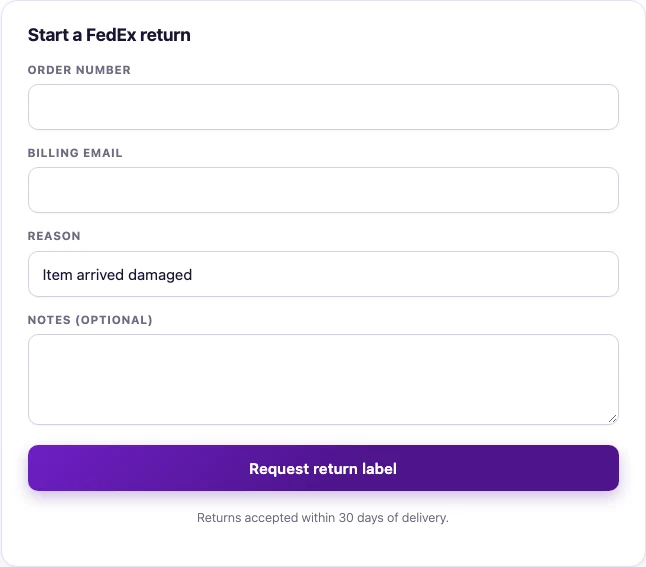 The return form: order number, billing email, reason, and an optional note.
How it works
- The customer enters their Order number and Billing email, picks a Reason (Item arrived damaged, Wrong item received, Not as described, Changed my mind, Other), adds optional notes, and clicks Request return label.
- The portal checks three things: a WordPress security token that blocks forged submissions, that the order exists and is inside the return window, and ownership — the billing email must match the order’s billing email (case-insensitive).
- The plugin asks FedEx for a prepaid return label (FedEx calls it a Print Return Label) and bills it to your FedEx account.
- FedEx returns the label PDF. The plugin saves it against the order and adds an order note recording the return tracking number.
- The customer sees a confirmation message: “Return submitted. Check your email for the FedEx label + nearest drop-off.”
About that email message. In this version the portal does not actually send email. The customer sees the message, but no label arrives in their inbox — the label is saved to the order, where you can reach it.Two easy ways to handle this:
- Tell customers what really happens, for example: “We have your request — your return label will arrive by email shortly.” Then open the label from the shipments list and forward it.
- Or watch the portal page (or your order notes) and send the label yourself the same day.
Where the label goes — and who pays
Billing is always on your account. Return labels are billed to your store’s FedEx account no matter what the Payment Type setting says. That setting on the Labeling tab controls outgoing labels only; return labels always bill the sender (you). The return is addressed to your store. The label’s destination is your store address, taken from two Settings tabs:
The customer’s own address (from the order) is printed as the sender, so FedEx knows where the parcel starts its journey. If the street lines or account details are wrong on those tabs, return labels print with the wrong destination — worth a check before you launch the portal.
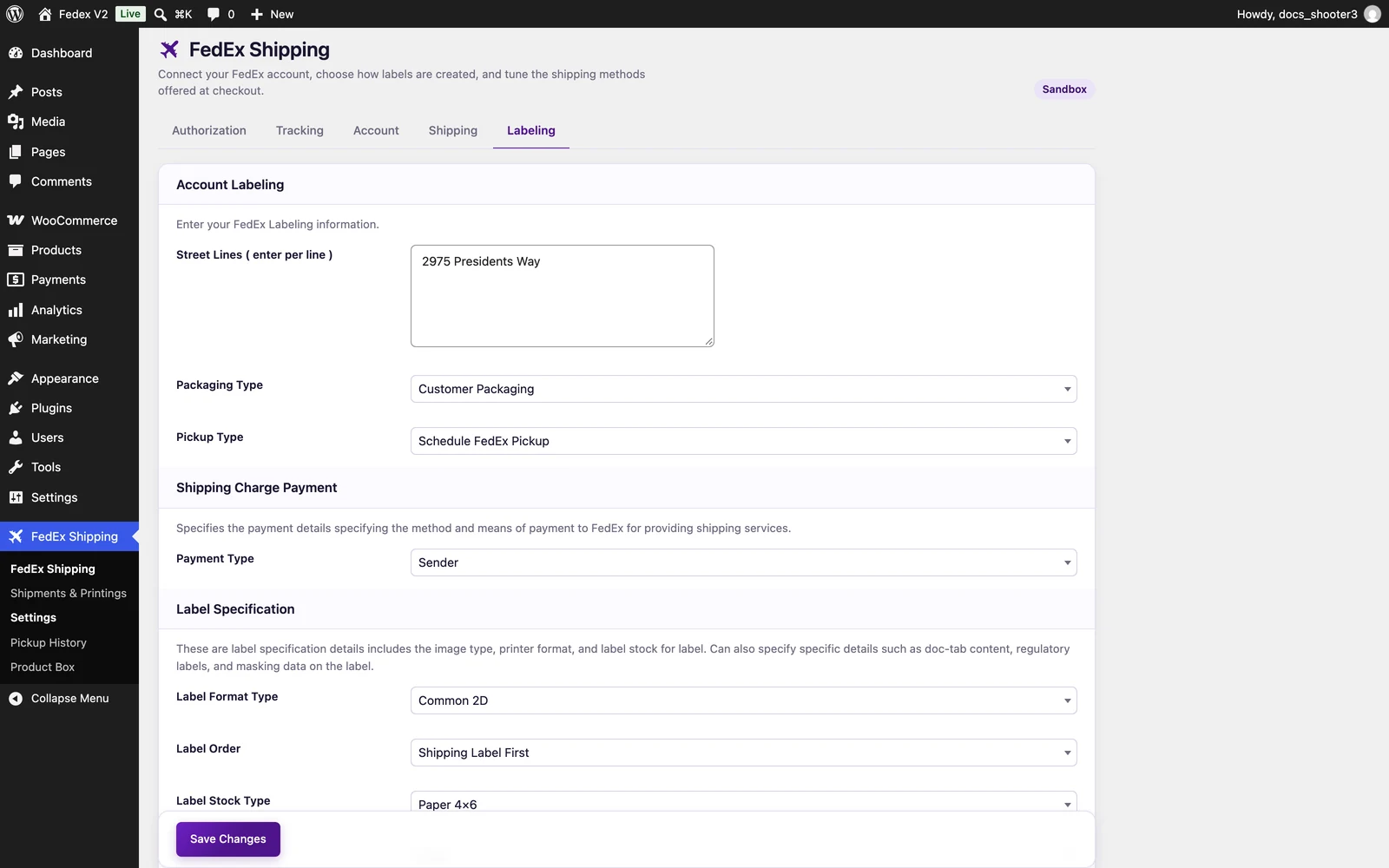 The Labeling tab. The Street Lines field here becomes the destination address on return labels.
Where you find the label
- The order gets a note: “FedEx return label created — tracking …” with the return tracking number.
- In WordPress Admin → FedEx Shipping → Shipments & Printings, the shipment’s row shows a Return label link in the Return column. Open it to view or print the PDF. (This list is an Instant shipping mode page.)
- You can also create a return yourself from the same column with the Create return button — useful when a customer phones in instead of using the portal.
Limitations to know before launch
- No automatic email. The label is not emailed or displayed to the customer — see the note above about the confirmation message. You pass the label on.
- Each request buys a label. Every successful submission charges a new label to your account. There is no duplicate check, so a customer who submits twice buys two labels.
- Email-as-ownership is weak protection. Anyone who knows a valid order number and its billing email can generate a return label charged to your account. Display the portal on an authenticated page (for example, inside the WooCommerce account area) and/or restrict it to logged-in customers if this concerns you.
- Quota counts. Return label purchases count as shipments for the daily quota.
- Each submission re-checks the return window; expired orders get a clear message instead of a label.
Customizing the portal
The portal’s checks — eligibility, ownership, allowed reasons — can be extended in code, for example to require a logged-in customer before a label is purchased. Your developer can find the plugin’s filters and actions in the developer reference.What’s next
Labeling settings
The tab whose Street Lines become the destination on every return label.
Shipments & Printings
Where the Return label link and the Create return button live.
FAQ
Quick answers about labels, quotas, and charges.