

Before you start
Open WordPress Admin → FedEx Shipping → Settings and look at the colored badge in the page header: purple Sandbox (test) or orange Production (live). Many problems are a sandbox-versus-production mixup — test keys pointed at the live environment, or real keys pointed at the test environment. When anything misbehaves, the details are almost always in WooCommerce → Status → Logs, where the plugin writes under these source names:Rates don’t appear at checkout
There is also a dedicated walkthrough for this exact problem: FedEx rates not showing at checkout. What you see. A customer reaches checkout and no FedEx options are shown. Any other shipping methods you offer still appear. If you open the checkout while logged in as an administrator, WooCommerce also shows a notice containing the FedEx error text. Most likely causes- The FedEx method is missing from the customer’s shipping zone — the most common cause. A shipping zone is a WooCommerce group of countries, states, or postcodes; FedEx prices are only offered in zones that contain the method named Fedex Shipping.
- Your daily checkout limit is reached. The checkout shows “Checkout limit has been exceeded for today. Please try tomorrow.” in place of the shipping options.
- FedEx did not answer — an outage or maintenance on their side. The plugin waits, retries the price request once, and then shows no FedEx rates rather than an out-of-date price.
- Address validation blocked the order. The customer’s checkout shows a message starting “FedEx shipment blocked: …”.
Fix steps
1
Check the shipping zone
Go to WordPress Admin → WooCommerce → Settings → Shipping and open each zone. The zone that covers the customer’s address must list the Fedex Shipping method. If it is missing, click Add shipping method, choose Fedex Shipping, and save the zone. The full walkthrough is in Add FedEx to a shipping zone.
2
Check the daily limit
Open WordPress Admin → FedEx Shipping → Settings. Below the save bar you will see your plan and today’s usage, for example “Plan: Free. Today usage: 10 / 10.” The Free plan allows 10 FedEx checkouts per day, Premium 100, Golden unlimited. The panel is read-only — there is no reset button — and the counter resets itself at midnight, your store’s local time.
3
Check whether FedEx is having problems
In WooCommerce → Status → Logs, filter by
teamzlab_fedex_shippnig and look at the last entries. Status codes 502, 503, or 504 mean FedEx’s servers were unreachable. Wait a few minutes and test the checkout again — the plugin already retried once for you.4
Check address validation
Open WordPress Admin → FedEx Shipping → Settings → Shipping and find the Enable checkout address validation checkbox near the bottom of the tab. One gotcha to know: on a brand-new install validation is ON even though the checkbox looks unchecked — it only turns off after you save this tab with the box unticked. If validation keeps blocking good orders, tick If address validation fails: allow shipment anyway (log + order note) so the order goes through with a note, or untick Enable checkout address validation, then click Save Changes.
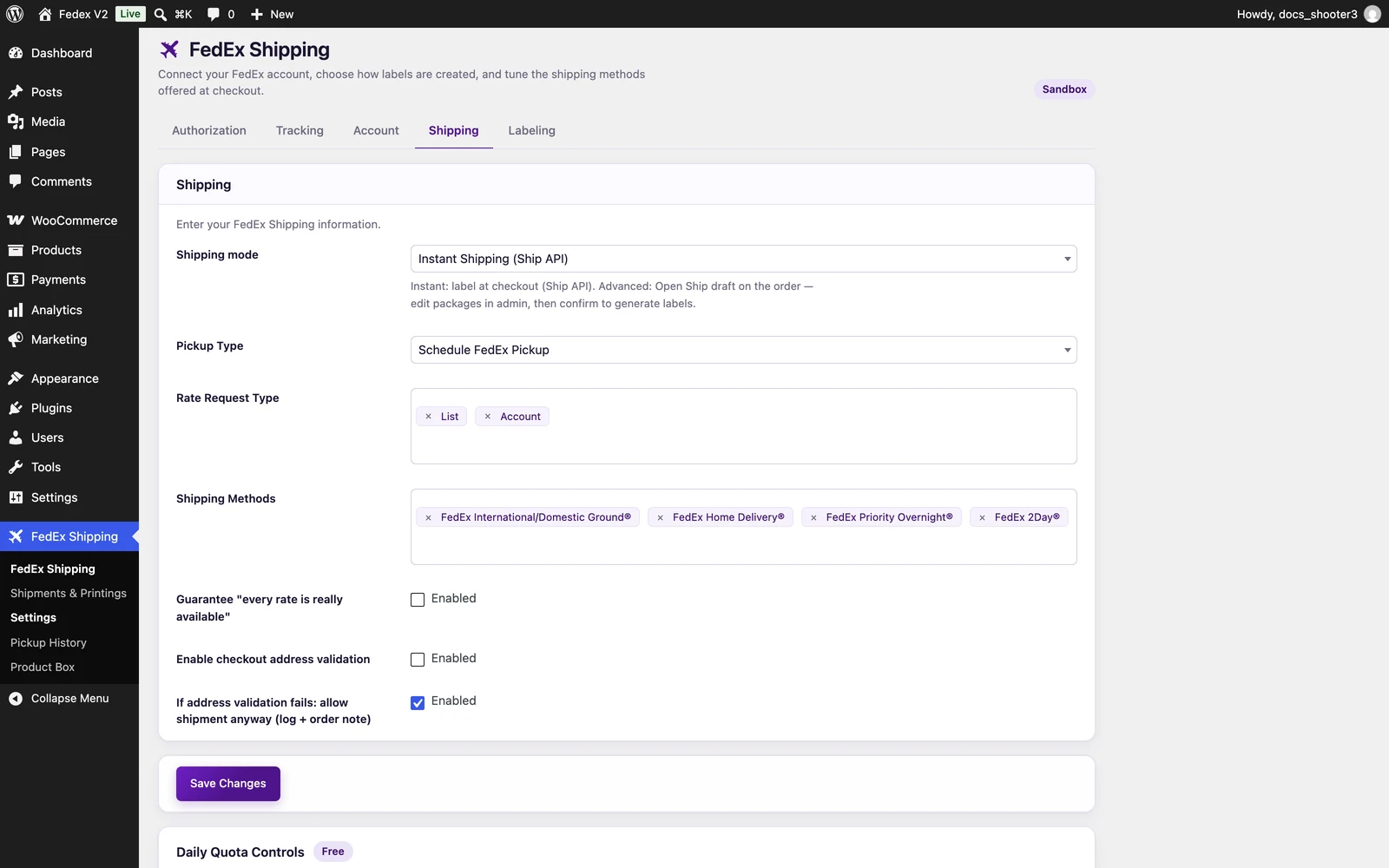 The FedEx Shipping settings page, Shipping tab. The address-validation checkboxes sit near the bottom of the tab.
How to verify the fix
Place a test order with a shipping address inside the zone you checked. FedEx options appear at checkout, and the order creates a shipment.If it still fails
Collect the log lines fromteamzlab_fedex_shippnig around the time of a failed checkout, plus the order number and the exact time. If the log shows 401 or invalid_client, go to Authentication errors below.
Authentication errors
What you see. Rates don’t appear, or labels fail, and the log shows401, invalid_client, not authorized, AUTHORIZATION.TOKEN.NOTFOUND, or invalid_token.
Most likely causes
- Expired or wrong keys — the most common cause. The Client ID and Client Secret don’t match each other, or the pair is no longer valid.
- Keys copied from the wrong environment tab of your FedEx project. Each project on developer.fedex.com has separate test and production keys. Production keys require FedEx approval (3–5 business days) before they work.
- A sandbox-versus-production mismatch. The Environment dropdown — the last field on the Account tab — says Production while your keys and account number are test ones, or the reverse. Account numbers are not interchangeable between the two environments either.
- An empty Tracking tab. Tracking uses its own Tracking Client ID and Tracking Client Secret, with no fallback to the main keys. Rates and labels keep working while tracking is silently dead.
Fix steps
1
Copy the matching key pair from FedEx
Sign in at developer.fedex.com, open your project, and copy the Client ID and Secret key from the same tab your environment needs: the test keys for Sandbox, or the production keys for Production.
2
Paste them into the plugin
Go to WordPress Admin → FedEx Shipping → Settings → Authorization. Enter them in Client ID and Client Secret.
3
Match the environment
Open the Account tab and set the last field, Environment, to the same environment your keys belong to. Check that Account Number is the one that belongs to that environment.
4
Save Changes
Click Save Changes. You do not need to clear anything: access tokens are cached against your exact credentials, so the next request automatically uses a fresh one.
5
Fix tracking separately, if needed
If rates work but tracking does not, paste the tracking key pair into Tracking Client ID and Tracking Client Secret on the Tracking tab, then save again.
How to verify the fix
Run a test checkout and confirm FedEx rates appear. Confirm the badge at the top of the Settings page matches the environment you intended.If it still fails
Collect the log lines fromteamzlab_fedex_shippnig (for rates) or teamz_shipment_create (for labels), with the exact error text, plus the time of the attempt.
Label creation fails
What you see. The order completes normally, but no label is created. The order shows a note like “FedEx shipment creation failed after checkout: …”, and no shipment row appears under FedEx Shipping → Shipments & Printings. A label failure never blocks the customer’s payment or the order itself. In Advanced mode, the draft shipment cannot be confirmed. Most likely causes- Address validation blocked it — the most common cause. The order note or the checkout message says the destination address is incomplete or could not be validated.
- The service doesn’t run to that address. The log shows
SERVICE.UNAVAILABLEorSERVICE.TYPE.INVALID— FedEx doesn’t offer the selected service on that lane. - Wrong environment for the account. A sandbox account used with Environment set to Production, or a production account in Sandbox. FedEx typically answers
NOT.FOUND.ERRORfor this mismatch. - The daily limit was reached at the moment of the order. The label is skipped quietly and only an order note is written.
Fix steps
1
Read the order note
Open the order in WordPress Admin → WooCommerce → Orders and read the order notes on the right. The note names what blocked the label.
2
Fix the address, if that is the cause
Complete the missing street, city, state/province (required for US and Canada), or postal code, then place the order again.
3
Check the service, if the log names it
If the log shows
SERVICE.UNAVAILABLE or SERVICE.TYPE.INVALID, the chosen FedEx service doesn’t run on that lane. Check the Shipping Methods list on the Shipping tab and confirm it contains services FedEx actually offers for your lanes.4
Check the environment and account
Open the Account tab. The Environment dropdown must match your keys and your account number: test account in Sandbox, production account in Production.
5
Check the daily limit
Look at the usage panel below the save bar on the Settings page. If today’s number has reached your plan’s limit, the label was skipped — it resets at midnight, your store’s time.
How to verify the fix
Place a test order. A shipment row appears under FedEx Shipping → Shipments & Printings, and View Label opens the PDF. Remember that sandbox test labels never move real packages.If it still fails
Collect the log lines fromteamz_fedex_checkout and teamz_shipment_create around the failure time, the order number, and the order note text.
Tracking shows nothing
What you see. Your tracking page shows “No events yet for this shipment.” or “No tracking details available yet. Please try again later.” Delivered orders never move to Completed on their own. Most likely causes- The Tracking tab is empty — the most common cause. The plugin never falls back to your main keys here, so tracking dies quietly while rates and labels work fine.
- The webhook isn’t set up on FedEx’s side. The plugin never subscribes itself: you copy the webhook URL from Settings → Tracking and register it in your FedEx developer project, and the Webhook Shared Secret must be the same value in both places. Until the secrets match, FedEx’s updates are rejected.
- The shipment is a sandbox test. Sandbox labels never move packages, so FedEx never produces scans for them.
- An event was missed while the connection was down. The tracking timeline only shows events FedEx pushed to your store; a missed event is never re-fetched in this version. The basic tracking box does query FedEx live, so the current status can still appear there.
Fix steps
1
Fill in the Tracking tab
Open WordPress Admin → FedEx Shipping → Settings → Tracking and enter Tracking Client ID and Tracking Client Secret from the FedEx project that has the Track API enabled.
2
Copy the webhook URL
On the same tab, click Copy next to the webhook URL shown in the Tracking Webhooks section.
3
Register it with FedEx
In your FedEx developer project, create a webhook subscription and paste the copied URL as the delivery address.
4
Set the shared secret
Enter the same secret in the Webhook Shared Secret field on the Tracking tab and in your FedEx webhook subscription, then click Save Changes. Deliveries are rejected until the two match.
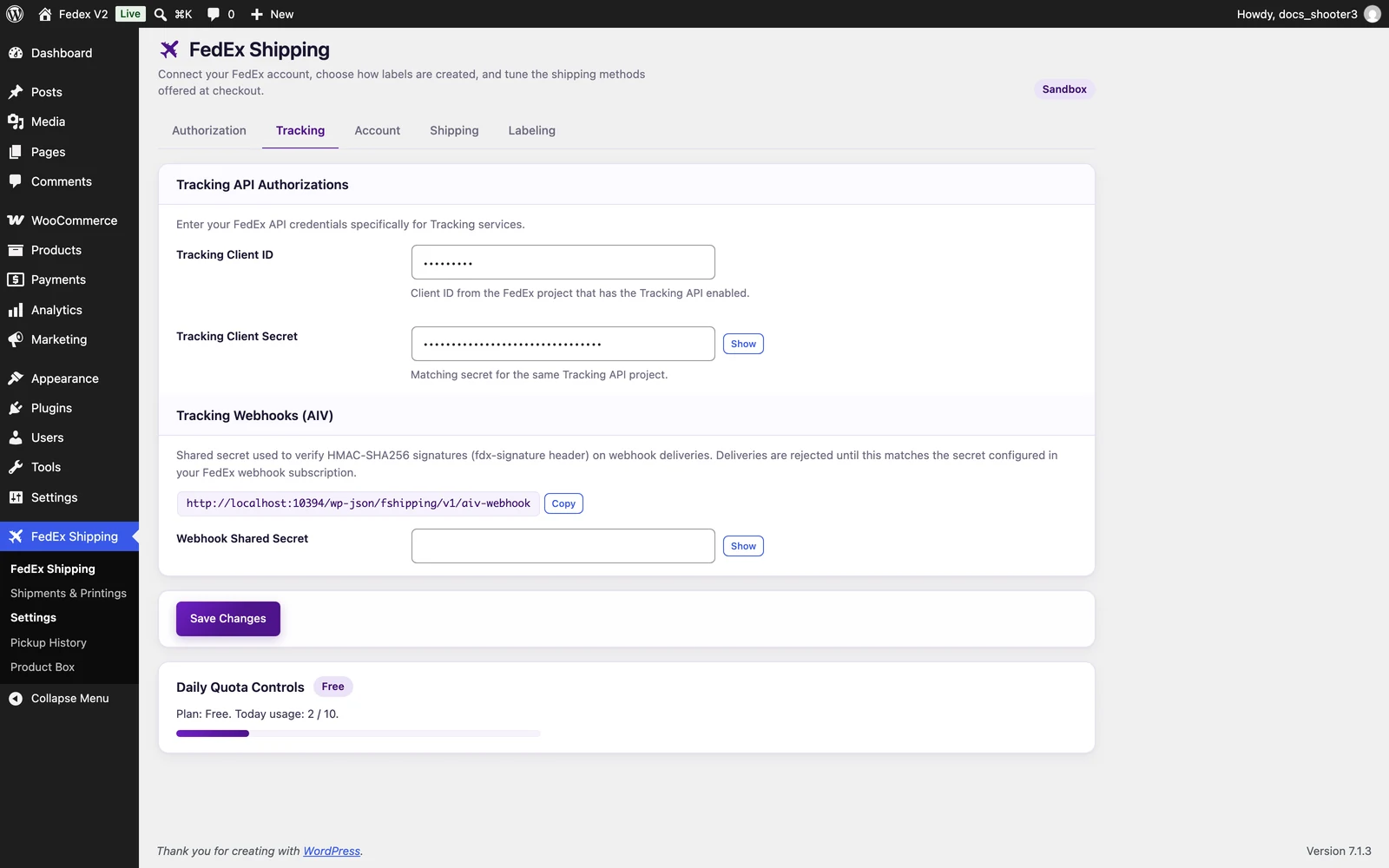 The FedEx Shipping settings page, Tracking tab, including the tracking credentials and the Webhook Shared Secret field.
How to verify the fix
Tracking events need a real shipment, so verify with a production order: the tracking page shows events, and delivered orders move to Completed automatically with the note “Delivered per FedEx webhook.”If it still fails
Collect the log lines fromteamz_fedex_webhook around the expected delivery time, plus a tracking number and the time it should have updated.
Why is my price different from fedex.com?
Most likely causes- Retail prices versus your negotiated prices. If Rate Request Type on the Shipping tab is left empty, the plugin asks for FedEx’s published retail prices (LIST). Stores with negotiated pricing must select ACCOUNT (and/or INCENTIVE, PREFERRED). At checkout the plugin shows the best of whatever FedEx returns, in the order INCENTIVE → ACCOUNT → PREFERRED → LIST.
- Prices are cached for 10 minutes. The same cart and destination receives the same stored quote for up to 10 minutes, so a price won’t change the moment FedEx’s does. Saving any Settings tab forces one fresh quote per cached package. Your developer can change or disable this window — see the developer reference.
- Residential versus business address. Rate requests send only the postal code and country — no street address and no residential flag — so FedEx prices by its own rules. Residential pricing applies only when FedEx returns a Home Delivery service. The “Residential address detected. Carrier surcharge may apply.” message at checkout is a heads-up only; it does not change the price.
Fix steps
1
Select your rate types
Open WordPress Admin → FedEx Shipping → Settings → Shipping, find Rate Request Type, and select the types your FedEx account uses — typically ACCOUNT for negotiated prices.
2
Save Changes
Click Save Changes. This also refreshes the cached quotes, so the next checkout requests live prices.
How to verify the fix
Compare a fresh checkout quote against fedex.com within a few minutes of each other, using the same addresses and package details.If it still fails
Collect the log lines fromteamzlab_fedex_shippnig — with WordPress debug mode on they include the exact prices FedEx returned.
A service disappeared from checkout
What you see. A service that used to appear — for example FedEx 2Day® — is gone for some or all customers. Most likely causes- Your service allow-list hides it — the most common cause. The Shipping Methods list on the Shipping tab shows only the services you ticked; leaving it empty shows every service FedEx returns.
- FedEx didn’t offer it for that cart or destination. Heavy carts often come back with freight services only, and some services don’t run to some addresses.
- The availability filter removed it.
Guarantee "every rate is really available"asks FedEx which services genuinely run on that lane and hides the rest. Answers are kept for a day, so the list can lag behind FedEx by up to a day in both directions.
Fix steps
1
Check the allow-list
Open WordPress Admin → FedEx Shipping → Settings → Shipping and find Shipping Methods. Tick the missing service, or empty the list to show everything FedEx returns.
2
Save Changes and retest
Click Save Changes, then check the checkout for an address where the service used to appear.
3
Rule out the availability filter
If it is still missing, untick
Guarantee "every rate is really available", save, and retest. If the service returns, the availability check was hiding it.How to verify the fix
The service reappears at checkout for a matching address and cart.If it still fails
Collect the log lines fromteamzlab_fedex_shippnig — the response lists every service FedEx returned for that cart, so you can see whether FedEx offered the service at all.
Sandbox: address validation and availability checks do nothing
What you see. With the Environment set to Sandbox on the Account tab, the optionalEnable checkout address validation check and the Guarantee "every rate is really available" check never reject or hide anything — rates still appear, but the two extra checks have no effect.
Most likely cause (confirmed). FedEx retired the two sandbox endpoints these optional checks call. The features still work against FedEx’s production environment; in the sandbox there is simply nothing to call. This is FedEx’s change, not a plugin fault.
Fix steps
- Nothing is broken — rates and labels work in the sandbox without the two checks.
- To test address validation or availability checking, switch the Environment to Production on the Account tab. Real prices and real shipments apply — see Going live first.
- Keep the plugin updated: updates are how the plugin follows FedEx’s API changes — see Compatibility.
How to verify the fix
With the Environment on Production, address validation rejects bad addresses and the availability check hides services FedEx would not run on the lane.Cancelling doesn’t work
What you see. You can’t find a way to void a label, or the cancel option is missing. How cancellation works- Instant mode: open WordPress Admin → FedEx Shipping → Shipments & Printings and use the Cancel button in the shipment’s row (it changes to Canceled), or the bulk action Cancel + Move to Trash. Cancelling also sets the WooCommerce order to Cancelled with the note “Shipment canceled”.
- Advanced mode: cancellation only exists before you confirm. Use Cancel on FedEx in the row on the Open Shipments page, or Restart FedEx session / Clear all packages (FedEx session) in the order’s FedEx Open Ship box.
- After confirming an Advanced shipment there is no cancel. The box locks with “Shipment confirmed — labels generated. Editing is locked.”, and this version has no button to void a confirmed Open Ship shipment. Handle the void from your FedEx account or with FedEx support.
Deleting a canceled shipment permanently deletes the WooCommerce order linked to it. Active shipments refuse deletion. Never empty the shipments trash unless you mean it.
If it still fails
Collect the shipment’s tracking number, the order number, and a screenshot of the shipments list row, then contact support using the checklist at the end of this page.Customer says no email arrived
What you see. After an instant-mode checkout, the customer has no “Your Shipment Has Been Created” email with the tracking number and label link. Most likely causes- It has been less than about five minutes — this is normal. The email is sent by a scheduled task roughly five minutes after the label is created, not instantly.
- It went to spam, or the address is wrong.
- The order never got a FedEx label. The email is only sent for instant-mode labels. Orders paid with another shipping method, and Advanced-mode drafts, send nothing.
- The send failed. Failures are logged under
teamz_fedex_email.
Fix steps
1
Confirm the label exists
Open WordPress Admin → FedEx Shipping → Shipments & Printings and find the order. No row means no label was created — start with Label creation fails.
2
Check the customer's email address
Open the order and confirm the billing email address is correct.
3
Wait, then check the log
Wait five to ten minutes. If the email still hasn’t arrived, open WooCommerce → Status → Logs, filter by
teamz_fedex_email, and look for a failure at that time.How to verify the fix
The customer (or a test customer) receives the email within about five minutes of the next test label, and it is not in spam.If it still fails
Collect the order number, the time of checkout, and anyteamz_fedex_email log lines from that window.
Still stuck? Contact support
If nothing above resolves it, contact support with everything below. One complete bundle is usually enough to find the cause.- The order number, and the exact time the problem happened (with your time zone).
- The log source you filtered by —
teamzlab_fedex_shippnig,teamz_shipment_create,teamz_fedex_checkout,teamz_fedex_webhook, orteamz_fedex_email— and the lines around that time. - Your environment badge (Sandbox or Production) from the Settings page.
- Screenshots of the relevant Settings tab and of the order.
Never share your Client Secret (secret key) or your Webhook Shared Secret with anyone, including support. Real support will never ask for them. Hide password fields before taking screenshots.
Checkout rates
How quotes are built, cached, and shown to customers.
FedEx API error codes
What codes like
invalid_client mean and where to fix each.Credentials
Create FedEx keys and connect the right environment.
Developer log reference
Every log source in detail, for your developer.