

What FedEx checks before a label
Before the plugin buys a label for an international order, it asks FedEx to check the shipment for customs problems. Two outcomes are possible:- Prohibited item. FedEx reports the item cannot ship. The plugin stops: no label is created and FedEx charges nothing. The order receives a note saying the shipment was blocked by pre-flight customs/compliance checks.
- Documents required. FedEx reports the shipment can ship, but customs will want extra documents. The label is still created, and the order note lists what to upload. You add those documents with the Trade Documents Upload window (below).
Where customs data comes from
The commercial invoice — the main customs document — is built automatically from the order whenever the delivery country differs from your ship-from country. You do not fill in a customs form anywhere.Who pays import duties
By default, you (the sender) pay import duties and fees — not your customer. There is no field for this on the settings screen in this version; a developer can change it — see Developer hooks. If you want your customer to cover customs charges instead of you, that switch needs a developer.Electronic Trade Documents (ETD)
When no documents have been uploaded, the plugin still sends the customs data above and asks FedEx to generate the commercial invoice alongside the label — that is the paper route. With ETD, documents are uploaded to FedEx’s trade-documents service first and then referenced on the label, so customs clears the shipment digitally. Once documents are linked to a shipment, the plugin marks the label request as paperless automatically. When FedEx asks for documents that are still missing, the order note tells you which ones and points you to the Trade Documents Upload window. Using paperless trade has two FedEx-side requirements (FedEx can change these — check the FedEx Developer Portal):- The Electronic Trade Documents API must be enabled on your FedEx project.
- Your FedEx account must be enrolled for paperless trade.
In this version there is no upload box on the order-edit screen. The box meant for attaching an ETD invoice to an order is defined in the plugin but never shown on any screen. That box is what triggers the automatic upload at label time, so for most stores the paper route applies at label purchase — and the way to go paperless is to upload documents yourself after the label exists (next section).
Uploading trade documents yourself
The Trade Documents Upload window lives on the shipments list. In Instant shipping mode, open WordPress Admin → FedEx Shipping → Shipments & Printings. In Advanced shipping mode, the same button appears on the Open Shipments page.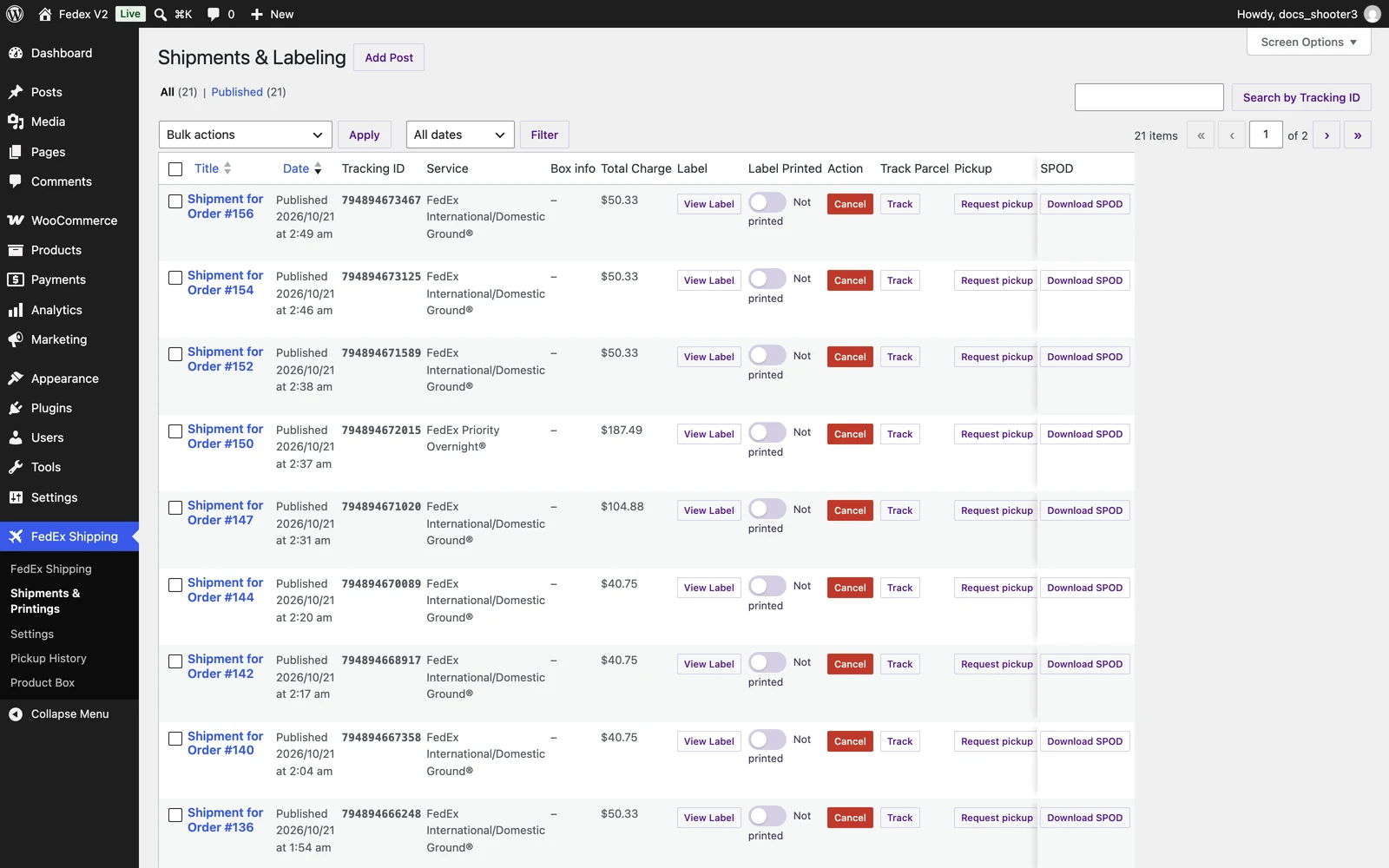 The Shipments & Printings list. The Trade docs column, with its Upload docs button, sits toward the right side of the table.
1
Find the shipment
Enter the tracking number in the search box labeled Search by Tracking ID and run the search. The shipment row appears.
2
Open the upload window
In the Trade docs column, click Upload docs. The Trade Documents Upload window opens with the subtitle “Upload customs documents in a clean, paperless flow.”The button is not available until the shipment has a tracking number, and it is switched off for canceled shipments.
3
Check the request details
The Request Details section shows Mode (Upload Documents or Upload Images), Workflow, Carrier, Tracking Number, Shipment Date, and the optional fields Form Code, Origin Country, Destination Country, Origin Location, and Destination Location. You normally leave these as they are — just confirm the Tracking Number matches your shipment.
4
Add your documents
Under Documents, click Add document, choose the file, and select the document type from the list (see the table below). Repeat for each document. You can upload up to 5 documents per request — the window footer reminds you: “Max 5 items per request.”
5
Upload to FedEx
Click Upload to FedEx. FedEx stores the documents and links them to the tracking number. The Trade docs column then shows Uploaded: followed by the count (for example,
Uploaded: 2), and the order receives a note that the upload succeeded.If something goes wrong, the column shows Failed with the error text so you can retry.There is no place to upload trade documents on the WooCommerce order screen in this version. Uploads happen only from the shipments list (or the Open Shipments list in Advanced mode).
Customs alerts by email
If FedEx flags a customs problem — a hold or a delay — you receive an email at your store’s admin address. The subject line looks like “[Customs hold] Order #1043 stuck at customs in DE”, and the email includes the event code, the description, the destination country, the tracking number, and a “What to do next” list:- Check the FedEx dashboard for the exact reason (missing commercial invoice, declared value issue, prohibited item).
- Upload any missing customs documents via the Trade Documents Upload feature.
- Review the order and notify the customer if an action on their side is needed.
Customs alerts are on by default, and there is no settings toggle for them in this version — you cannot turn them off or change the address on any screen. Alerts go to your store’s admin email address unless a developer has set a different one.
Developer-only extensions
These international features exist in code but have no admin UI in this version:- Regulatory pre-checks (
HTTP\GlobalTrade) — used by the pre-ship guard described above; also usable directly. - The per-order sidebar boxes for ETD invoices, special services, dangerous goods, service preferences, and freight are defined but not registered on any screen in this version. Their payload logic still runs where noted above.
- A developer can adjust several parts of this flow — automatic commercial invoices, invoice purpose and terms of sale, duties payment, country of manufacture, and the trade-documents endpoint — with developer hooks; see Developer hooks.
Practical checklist for international orders
- Give every product a Weight in WooCommerce — the customs invoice copies it.
- Set your real ship-from country under Settings → Account tab → Country. It decides whether an order counts as international and fills in the country of manufacture.
- Fill the shipper street lines on the Labeling tab — customs documents need the full address.
- Check your product prices are sensible: customs values come from the order prices, not from a separate box.
- Test in sandbox with an international destination and read the order notes. Sandbox labels never move real packages — nothing actually clears customs in a sandbox test.
- After a real shipment, if FedEx asks for documents, use the Trade Documents Upload window on the shipments list.
Label settings
Sender street lines and label format — the address your customs paperwork shows.
Shipments & Printings
The list where the Trade docs column and upload window live.
Tracking customers can use
How you and your customers follow an international shipment.