

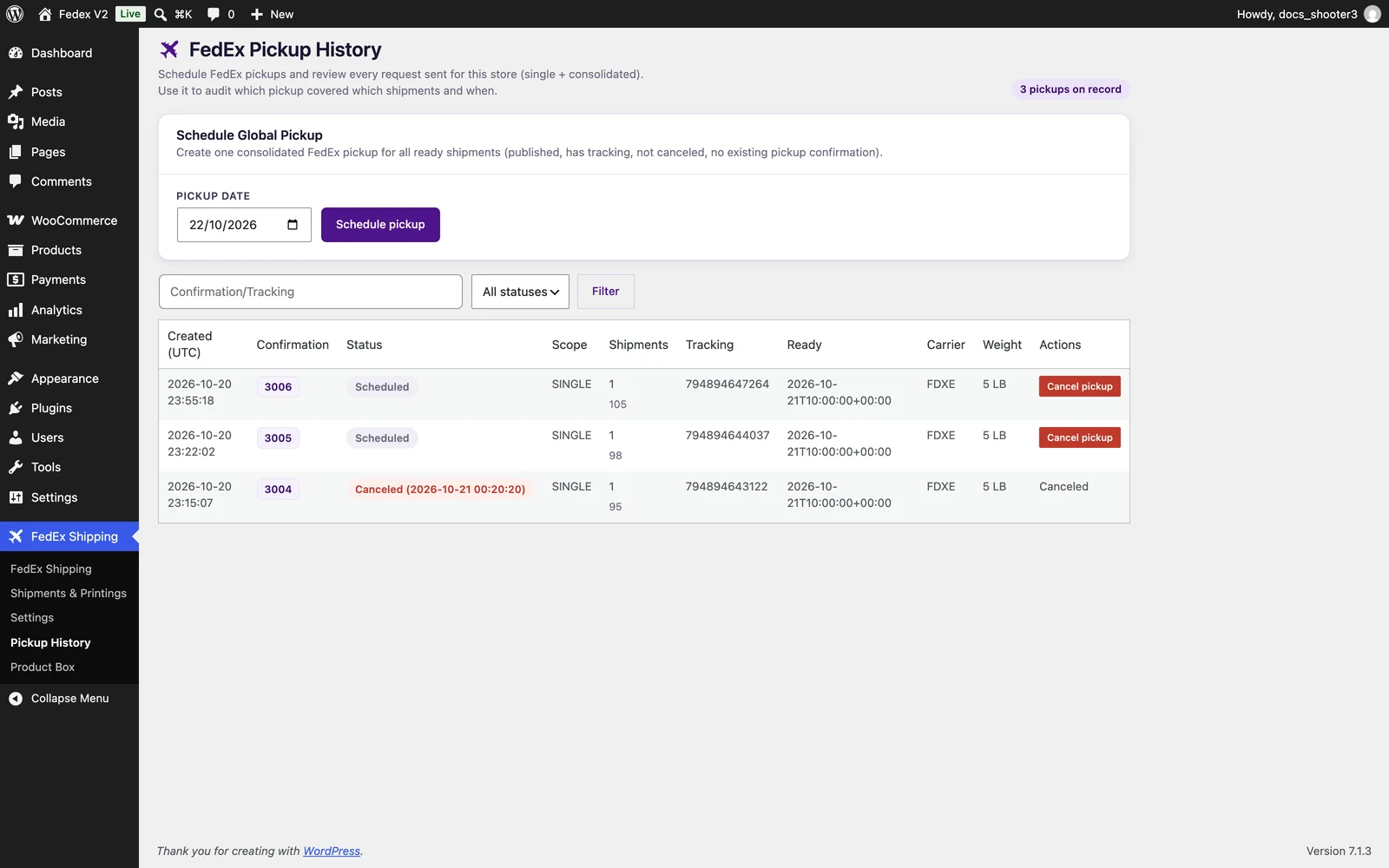
 The FedEx Shipping Pickup History page, with the Schedule Global Pickup card at the top.
Schedule Global Pickup
The card at the top creates one consolidated FedEx pickup for every shipment that is ready to be collected. A shipment counts as ready when it:- is an active shipment in FedEx Shipping → Shipments & Printings (not canceled),
- has a FedEx tracking number,
- has no pickup confirmation number yet.
1
Open Pickup History
Go to WordPress Admin → FedEx Shipping → Pickup History. The Schedule Global Pickup card appears at the top.
2
Pick a date
In the Pickup date field, choose a date. It starts on the next business day, and by default you can book up to 2 days ahead. Your developer can extend that window — see the developer reference.
3
Click Schedule pickup
Click Schedule pickup. The page lists the ready shipments it found — up to 12 tracking numbers, plus the total count and your chosen date — and asks you to confirm.
4
Confirm the pickup
Confirm the dialog. FedEx returns a confirmation number, the page shows a “Pickup scheduled” message with that number, and the new pickup appears in the history table below. The confirmation number is attached to every shipment the pickup covers.
History table
Every pickup request is listed in the table below the card:
Use the search box (it matches confirmation and tracking numbers) and the All statuses / Scheduled / Canceled filter to find a specific pickup. When no pickups exist yet, the table shows “No pickup history found yet.”
Cancel pickup
Each scheduled row has a Cancel pickup button.1
Click Cancel pickup
Click Cancel pickup on the row. A confirmation appears: “Cancel this scheduled FedEx pickup? This calls FedEx cancel and clears pickup data on linked shipments.”
2
Confirm the cancellation
Confirm. FedEx cancels the pickup, the row’s status badge changes to Canceled with the date, and the pickup confirmation is cleared from the shipments it covered.
Single-shipment pickups
You can also request or cancel a pickup for one shipment from the Pickup column in FedEx Shipping → Shipments & Printings. Those requests appear in this history too — the Scope column tells you whether a row covers a single shipment or a consolidated pickup. The Pickup Type settings on the Shipping tab (price quotes) and the Labeling tab (labels the plugin creates) never schedule a pickup by themselves. Real pickups are scheduled on this page.Related
Shipments & Printings
Per-shipment pickups, labels, and cancel actions.
Shipping tab
How the Pickup Type setting shapes checkout prices.