

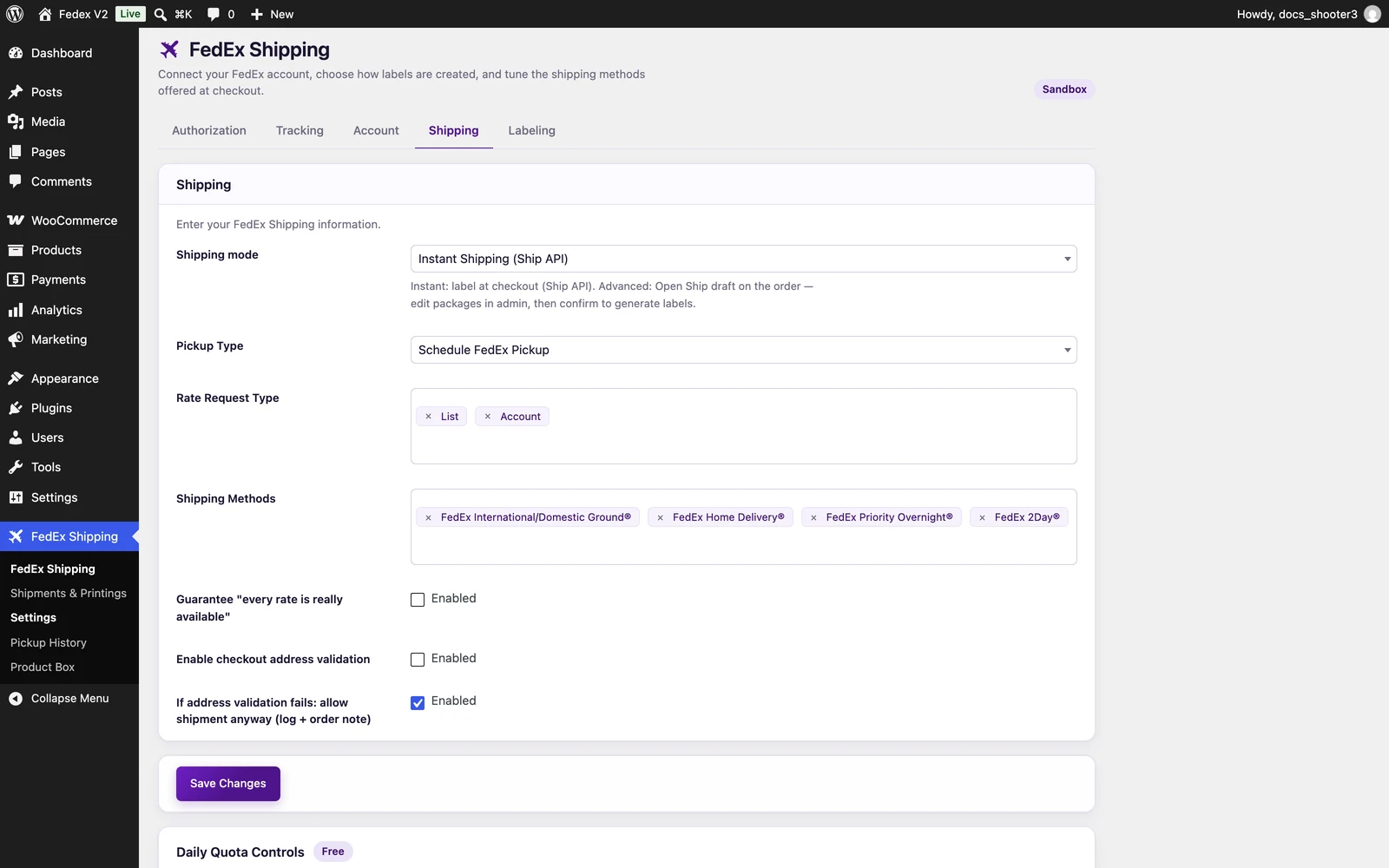
 The FedEx Shipping settings page, Shipping tab. The Daily Quota Controls panel sits further down the page, below the save bar.
Fields at a glance
Shipping mode
The Shipping mode dropdown chooses how labels are created:- Instant Shipping (Ship API) — a label is bought automatically the moment a customer checks out. You do not need to click anything.
- Advanced Shipping (Open Ship API) — checkout creates an editable draft instead. You review the packages and confirm the shipment from the admin area, and the labels are created when you confirm.
Pickup Type
Pickup Type tells FedEx how you plan to hand packages over when it calculates prices, because that can affect the quote:
This field only shapes price quotes. It never books a pickup — real pickups are scheduled from Pickup History. If you never save a choice here, FedEx quotes assume Use Scheduled Pickup.
FedEx Shipping has two settings named “Pickup Type”. This one, on the Shipping tab, affects price quotes only. The one on the Labeling tab is written onto the labels the plugin creates.
Rate Request Type
Rate Request Type chooses which FedEx prices are requested for every quote. You can select more than one.If this field is empty, checkout shows retail (LIST) prices — even if your FedEx contract includes discounts. If you have negotiated rates, select the rate types your agreement gives you so your discounts actually appear at checkout.
Shipping Methods
Shipping Methods limits which FedEx services customers are offered at checkout — for example FedEx Home Delivery®, FedEx Priority Overnight®, FedEx 2Day®, or FedEx International Priority®. Select only the services you actually want to sell; most stores keep a short list. Leave it empty to show every service FedEx returns for the cart.Safety net: if your selection would hide every rate for a cart — for example, none of your chosen services serve that destination — the plugin shows every FedEx rate instead. Checkout never breaks just because a cart does not match your list.
Guarantee “every rate is really available”
Off by default. When selected, the plugin double-checks each quoted service with FedEx before offering it, so customers only see services FedEx confirms are genuinely available for that shipment. Two things to know before turning it on:- It adds an extra check to every quote, which means one more call to FedEx each time a cart requests prices.
- FedEx has retired this availability service in its sandbox (FedEx’s test environment), so the check does nothing there. See Troubleshooting before enabling it.
Enable checkout address validation
When selected, FedEx checks the customer’s delivery address during checkout. Customers may see a notice such as “Residential address detected. Carrier surcharge may apply.”, and an order that cannot be validated is stopped before a label is bought.Validation is ON for a brand-new store — until you save the Settings page for the first time.On a fresh install the checkbox looks empty, but address validation is actually running. The first time you click Save Changes, the box is stored exactly as it looks — empty — and that save switches validation OFF. If you want validation, select Enabled and save; it then stays on until you clear it yourself.
1
Open the Shipping tab
Go to WordPress Admin → FedEx Shipping → Settings and click the Shipping tab. The Shipping settings appear.
2
Select Enabled
Under Enable checkout address validation, select Enabled.
3
Save
Click Save Changes at the bottom of the page. WordPress shows a “Settings saved.” message, and address validation is now on.
If address validation fails: allow shipment anyway (log + order note)
This field only matters when address validation is on. It decides what happens when FedEx cannot match the customer’s address:- Off (default): the order cannot be placed until the address validates.
- On: the order still goes through. The plugin logs the failure and adds a note to the order telling you to check the address on the label.
What saving does
One Save Changes button saves every tab of the Settings page at once — Authorization through Labeling. The page says it on the save bar: “Settings apply across checkout, order editing, and the shipments list.” Saved changes take effect immediately. Checkout prices are remembered for about 10 minutes so checkout stays fast. Saving the Settings page forces one fresh quote for each stored set of prices, so customers are quoted with your new settings right away. A few advanced options have no visible control and are set by a developer — see the developer reference.Daily shipment quota
Your plan sets how many labels can be created per day: Free = 10 per day, Premium = 100 per day, Golden = unlimited. When the daily limit is reached, FedEx rates stop appearing at checkout and the customer sees a “Checkout limit has been exceeded for today. Please try tomorrow.” message instead. The Daily Quota Controls panel at the bottom of the Settings page shows your plan and today’s usage. It is read-only — there is no reset button. Usage resets automatically at the start of each day.Related
Checkout rates
How FedEx prices are calculated and shown to customers.
Instant labels
The label-at-checkout workflow, step by step.
Labeling tab
Store address, packaging, payment, and how printed labels look.