

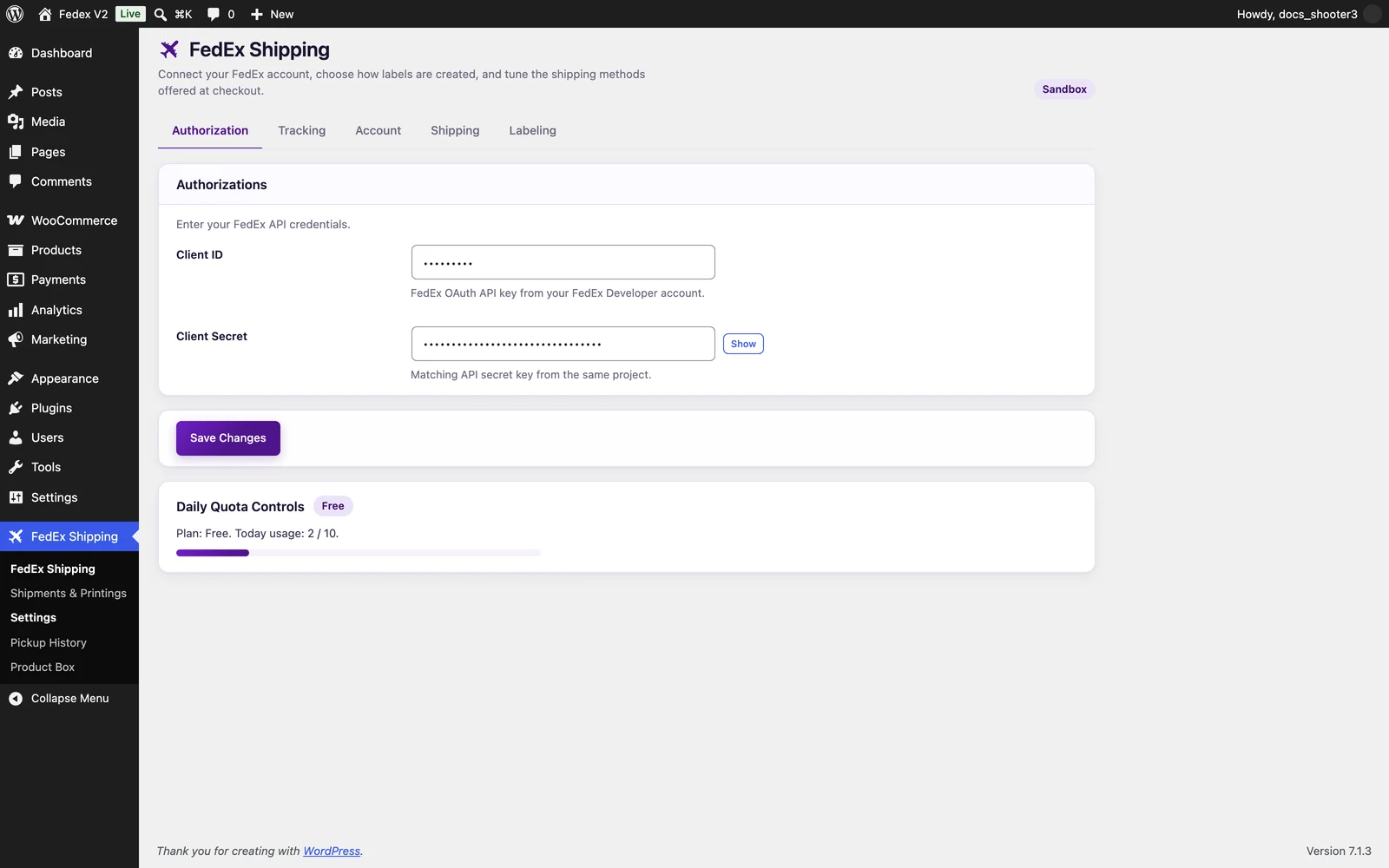
 The FedEx Shipping settings page, Authorization tab. The quota panel appears further down the page, below the Save bar.
One page, five tabs, one Save button
The Settings page has five tabs: Authorization, Tracking, Account, Shipping, and Labeling. They behave as one form. Edit any tab, then click Save Changes once at the bottom of the page — every tab is saved together. You cannot save a single tab on its own.Saving also clears the plugin’s stored shipping prices. The next customer who opens the cart gets a fresh quote straight from FedEx instead of a stored one.
Client ID
A text field. The on-screen help text says: “FedEx OAuth API key from your FedEx Developer account.” In plain words: it is the key that tells FedEx which of your projects is asking.Client Secret
A password field. The on-screen help text says: “Matching API secret key from the same project.”
The field has a Show / Hide button next to it. The secret is shown as dots by default and never prints on screen until you click Show. Clicking Show reveals it on this screen only. The secret is saved with your WordPress site’s settings, like everything else on this page; only people who can open this Settings page can see it.
Sandbox or production?
The Environment dropdown decides which FedEx the plugin talks to: the test servers (sandbox) or the real ones (production). The dropdown itself sits on the Account tab, but it belongs with your credentials: it decides which FedEx server your Client ID and Secret are used against. A badge at the top of the Settings page always shows the current mode: orange Production or purple Sandbox.A fresh install behaves as sandbox until you deliberately switch the Environment dropdown to Production and save. That is the safe direction: nothing ships for real by accident. Just remember that your first test orders will not create real labels while you are in sandbox.
Signing in to FedEx is automatic
You never handle sign-in details beyond the two fields above. When the plugin needs to talk to FedEx, it signs in with your Client ID and Client Secret by itself. Behind the scenes it receives a temporary pass (called a token) and reuses that pass for a while instead of signing in again for every single price check. When the pass gets old, the plugin signs in again on its own. There is no token to paste, refresh, or delete anywhere.Saving does not test the credentials
The plugin does not check your Client ID or Secret at the moment you save. A wrong value is discovered the first time the plugin talks to FedEx — usually as missing FedEx rates at checkout or a label that fails to create. If that happens, work through Troubleshooting.Daily quota panel (read-only)
At the bottom of the Settings page, under the Save bar, the Daily Quota Controls panel shows how much of your plan you have used today:- your plan name,
- today’s usage, for example “Plan: Free. Today usage: 0 / 10.”,
- a progress bar for today’s usage,
- the message “Quota is currently reached.” when you have hit the limit.
There is no reset button on this panel — it is display only. The counter resets itself automatically each day. If you need more shipments per day, upgrade your plan.
Related
FedEx credentials
Where to create your FedEx project and copy the Client ID and Client Secret.
Going live
Switch from sandbox to production without surprising your customers.
Troubleshooting
What wrong or missing credentials look like, and how to fix them.