

Sandbox labels are tests. They never move a real package, and nothing on this page creates real charges. You switch to production only when you deliberately go live — see Going live.
1
Install and activate the plugin
Install the plugin — search for Teamzlab Fedex — on the WordPress Plugins screen and click Activate. The full walkthrough, including manual ZIP upload, is on Installation.After activation, a new FedEx Shipping menu appears in your WordPress admin.
2
Get sandbox API keys from FedEx
The detailed version is on Connecting FedEx credentials. In short:
- Sign in at the FedEx Developer Portal with your FedEx account.
- Create a new API project and enable at least Rates & Transit Times, Ship, and Address Validation. FedEx updates its portal often — follow the current Create Project flow rather than any exact clicks quoted elsewhere.
- Choose the sandbox (test) environment for the project.
- Copy the API key (the Client ID) and the Secret key (the Client Secret).
3
Enter the keys in the plugin
- Go to WordPress Admin → FedEx Shipping → Settings.
- On the Authorization tab, enter your keys in Client ID and Client Secret.
- Open the Account tab and select Sandbox in Environment (the last field on that tab).
- Click Save Changes.
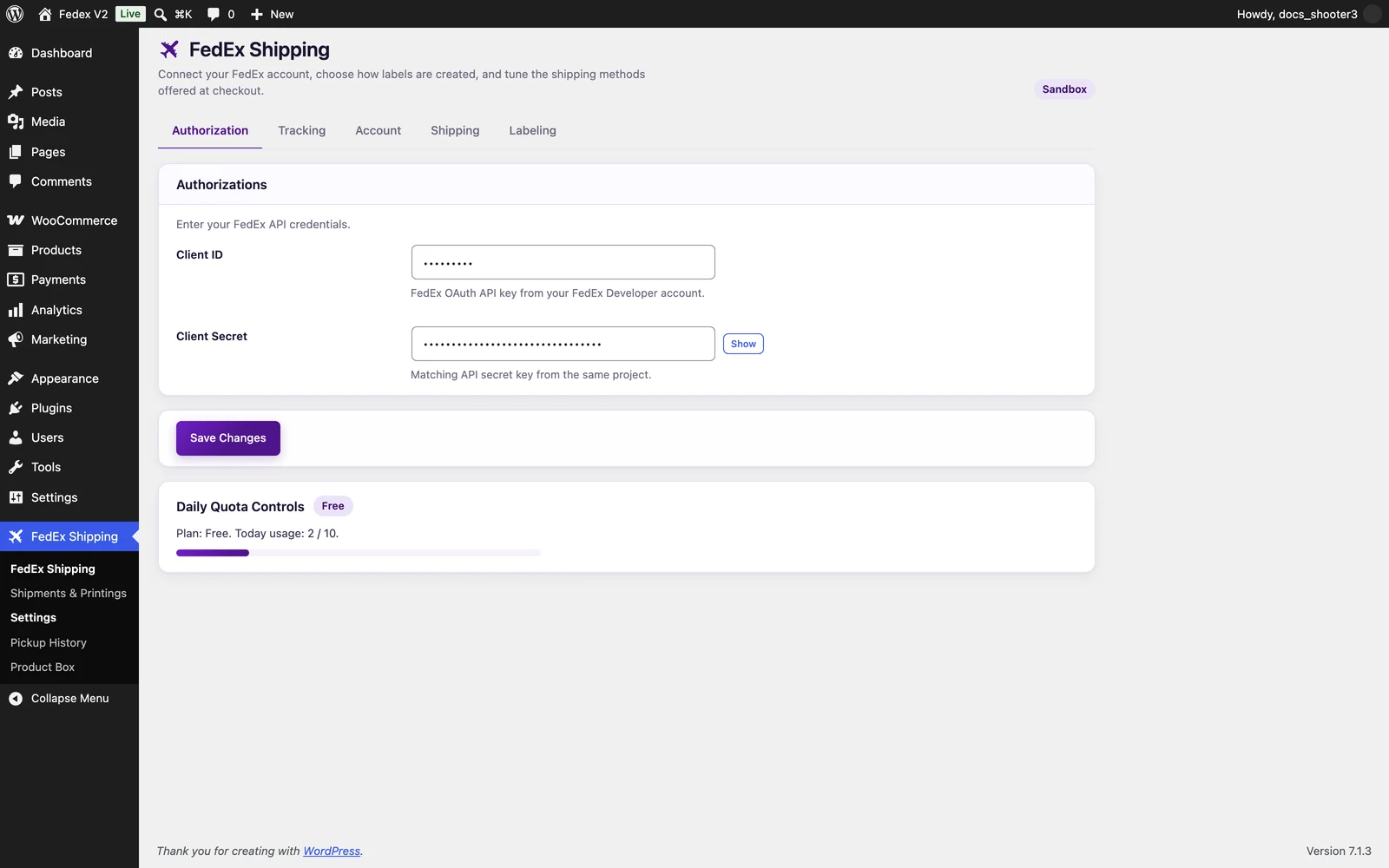 The Authorization tab, where the Client ID and Client Secret go.
4
Add the Fedex Shipping method to a shipping zone
- Go to WordPress Admin → WooCommerce → Settings → Shipping.
- Open the zone that covers the address you will test with. If you have no zone yet, click Add zone and add one that covers your country.
- Click Add shipping method, select Fedex Shipping, click Continue, then Save zone and method.
5
Place a test order
- On your store, add any product to the cart and go to checkout.
- Enter a delivery address inside the shipping zone you used.
- Select one of the FedEx services offered and place the order.
Checkout prices can be cached for up to 10 minutes. If you just changed your settings and want fresh prices immediately, save the Settings page once — saving forces one fresh quote.
6
See the result
- Go to WordPress Admin → FedEx Shipping → Shipments & Printings. Your test shipment is listed, with its tracking number.
- Open or print the label from the Label column with the View Label button.
- About five minutes later, the customer email arrives: “Your Shipment Has Been Created”, with the tracking number and a link to the label.
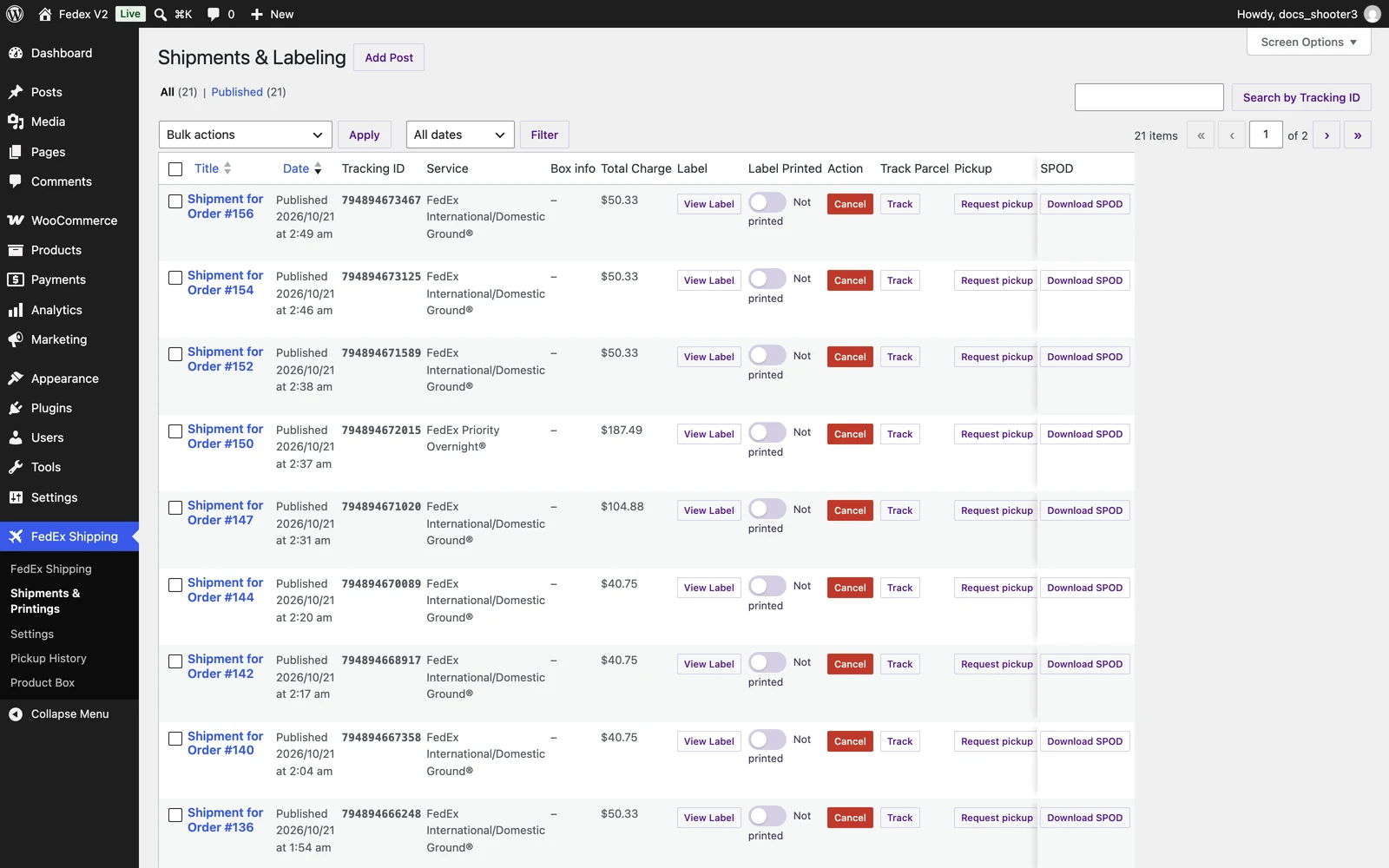 The Shipments & Printings list, showing the tracking number and label buttons for your test shipment.
It didn’t work?
Start with Troubleshooting. The most common causes are an empty settings field, a shipping zone that does not cover the test address, or FedEx rejecting the sandbox credentials. The exact FedEx error is written to the WooCommerce logs — the troubleshooting page shows where to look.Next steps
Going live
Switch from sandbox to production safely, without surprising your customers.
Instant labels
How instant mode creates labels at checkout, and what can block one.
Open Ship advanced
Review and edit packages per order before you create labels.
Settings reference
Your credentials and environment, explained field by field.