

What a webhook is
A webhook is a way for FedEx to call your store’s special address whenever a package scan happens, so tracking updates arrive by themselves — nobody has to press refresh.One-time setup
You do this once per store. You copy a webhook URL from the plugin, paste it into your FedEx developer project, and set one shared secret on both sides.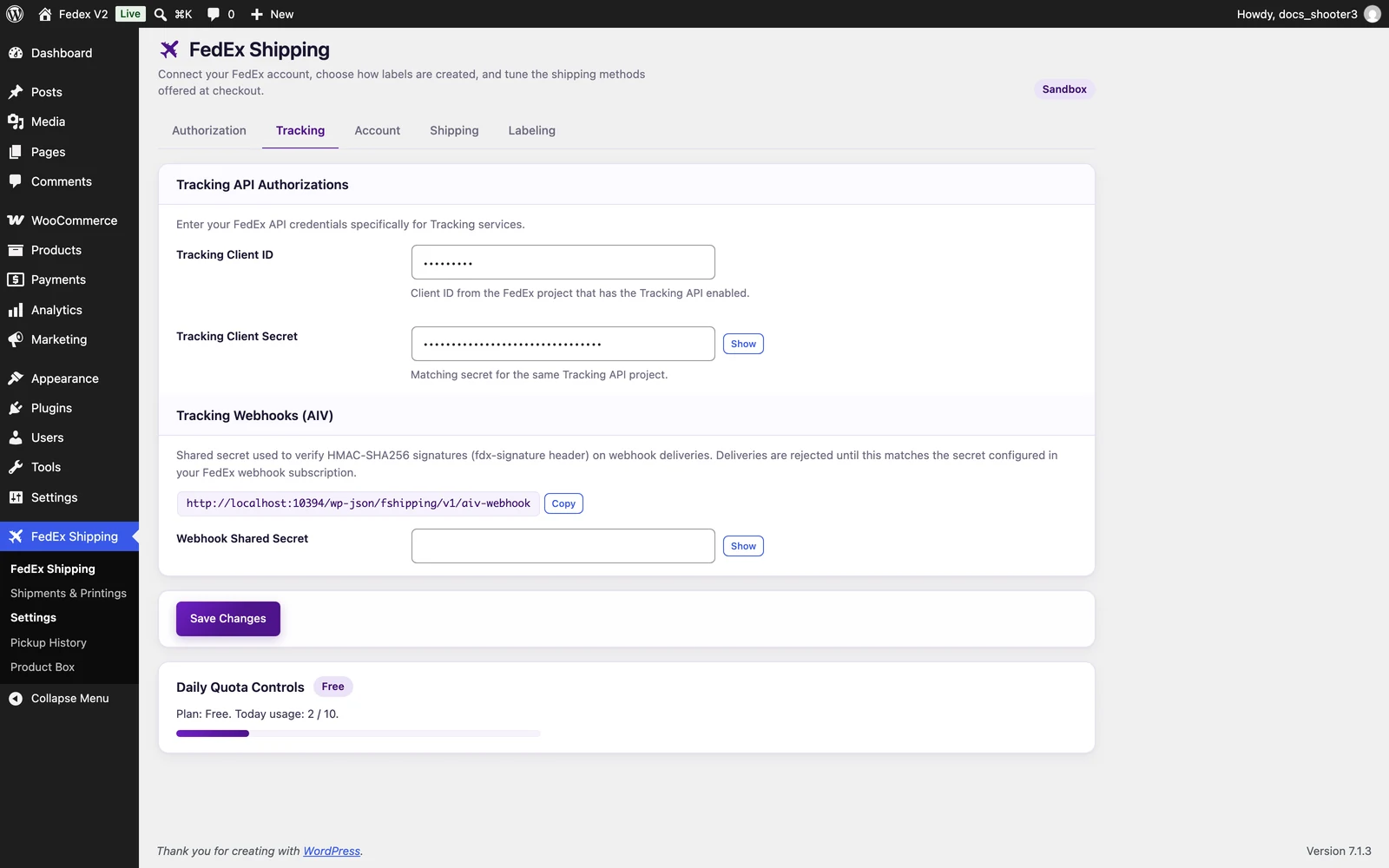 The FedEx Shipping settings page, Tracking tab. The Tracking Webhooks (AIV) section — the webhook URL with its Copy button, and the Webhook Shared Secret field — appears below the tracking credentials fields.
1
Copy your store's webhook URL
Go to WordPress Admin → FedEx Shipping → Settings and click the Tracking tab. In the Tracking Webhooks (AIV) section, click Copy next to the webhook URL. The URL is now on your clipboard.“AIV” is the abbreviation the plugin uses for this tracking webhook feed — you will see it only in this section’s heading.
2
Open your FedEx developer project
Sign in to the FedEx Developer Portal and open the project that holds this store’s API keys — the same project your Client ID came from.
3
Paste the URL into FedEx's webhook settings
In the project’s webhook or notification settings, add a webhook (push notification) for tracking events and paste the copied URL as the address FedEx should call.
FedEx reworks its portal often, so the exact screen names change. If you cannot find the webhook setting, search the portal help for “webhook” or contact FedEx developer support.
4
Use the same shared secret on both sides
Think of a long, random secret phrase. Enter it in the FedEx webhook settings where FedEx asks for the secret used to sign deliveries, then enter exactly the same text in the Webhook Shared Secret field on the Tracking tab back in WordPress. It must match character for character. Treat it like a password — customers never see it.
5
Save
Click Save Changes at the bottom of the settings page. A “Settings saved.” confirmation appears.
The plugin cannot do this step for you. There is no automatic subscription and no button that registers the URL with FedEx — you paste the URL into your FedEx project yourself.
Updates the plugin misses are not re-fetched. If the URL or the secret was wrong for a while, those scans are gone: this version has no way to go back and pull missed tracking history. Tracking simply resumes from the next scan — delivery confirmations and alert emails also only fire for events that actually arrive.
What happens when an event arrives
Events for tracking numbers your store does not recognize are ignored — FedEx gets a “received” answer, but nothing is stored.
How your store knows a message is really from FedEx
Every message FedEx sends is signed with your shared secret — a check value that only FedEx and your store can produce, because only those two know it. Before the plugin acts on a message, it checks that signature. If the signature is missing or wrong, the message is refused automatically. Messages that are more than a day old, dated in the future, or exact duplicates of a message already processed are ignored, so your timeline stays clean. While the Webhook Shared Secret field is empty, the plugin refuses every delivery. That is deliberate: nobody can feed your store fake tracking updates while you are still setting up. If FedEx’s delivery log shows messages “sent but rejected”, an empty or mismatched secret is the usual reason.Testing it honestly
Sandbox (test) tracking numbers may never receive a real scan — FedEx’s sandbox does not move real packages, so the webhook may never fire during a sandbox test. That silence is expected. See Tracking customers can use for what tracking looks like in the meantime.No updates? Check these first
- The secret matches. Compare the Webhook Shared Secret field in WordPress with the secret in your FedEx project, character for character.
- The URL is pasted. The webhook URL from the Tracking tab must be saved in your FedEx project’s webhook settings.
- Tracking credentials exist. The Tracking Client ID and Tracking Client Secret fields on the Tracking tab must be filled in. An empty Tracking tab silently disables tracking in this version.
Tracking settings reference
Every field on the Tracking tab, including the webhook section and tracking credentials.
Tracking customers can use
The tracking screens, shortcodes, and timeline your store already has.
Troubleshooting
Symptom-by-symptom fixes, including silent tracking.