

The journey at a glance
From checkout to printed label
1
The customer checks out with a FedEx rate
At checkout, the customer sees live FedEx services and prices and picks one. The plugin works with both the classic WooCommerce checkout and the block checkout.The customer lands on the order-confirmation page and sees a Shipment created successfully! notice.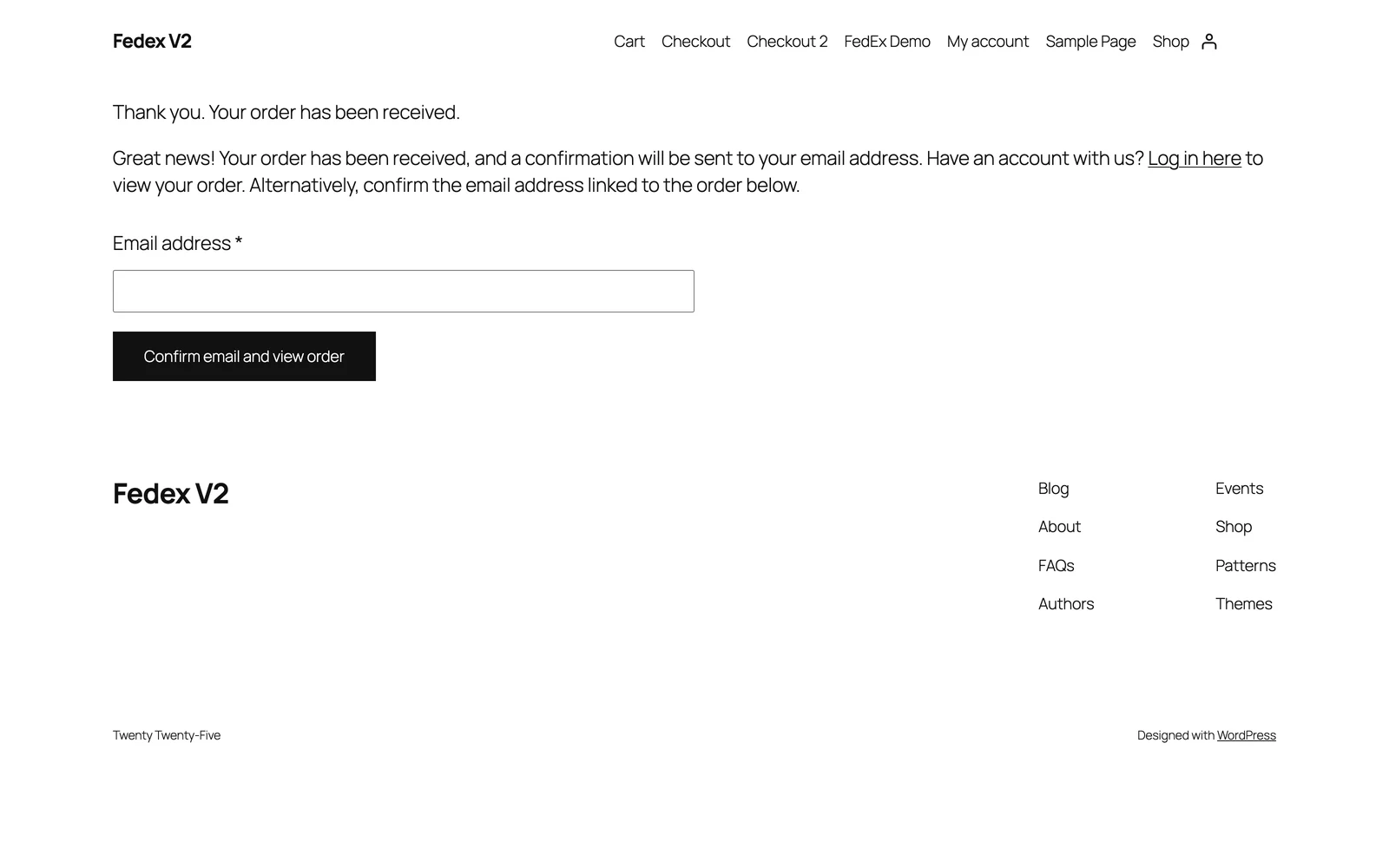 The order-confirmation page the customer sees after paying.
The order-confirmation page the customer sees after paying.2
The plugin creates the shipment and buys the label
Straight after the order is placed, the plugin sends the shipment to FedEx. Before it does, it runs a few plain checks:
- The store has not reached its daily shipment limit — 10 per day on Free, 100 on Premium, unlimited on Golden.
- For international orders, a pre-shipment customs check runs first.
- If you enabled checkout address validation, the delivery address is validated.
- A duplicate guard makes sure a double-click or a payment retry never buys two labels for one order.
3
The label is stored on your site
The label PDF is saved in a protected folder inside your site’s uploads directory. The plugin creates and manages this folder for you. It is blocked from public access, and you never need to open it — every label stays one click away in the admin list described in the next step.
If your environment is set to Sandbox, the label is a test label. Sandbox labels never move real packages and never create real charges. Switch to Production when you are ready to ship for real — see Going live.
4
You print the label from Shipments & Printings
WordPress Admin → FedEx Shipping → Shipments & PrintingsEach shipment is one row. Find the row for the order and click View Label in the Label column to open the PDF. Print it and attach it to the box.Use the Label Printed switch to keep track of what has already been printed. It shows Printed or Not printed.The most recent shipments also appear in the Recent FedEx shipments widget on your WordPress dashboard.Every column and button on this page is explained in Shipments & Printings (label manager).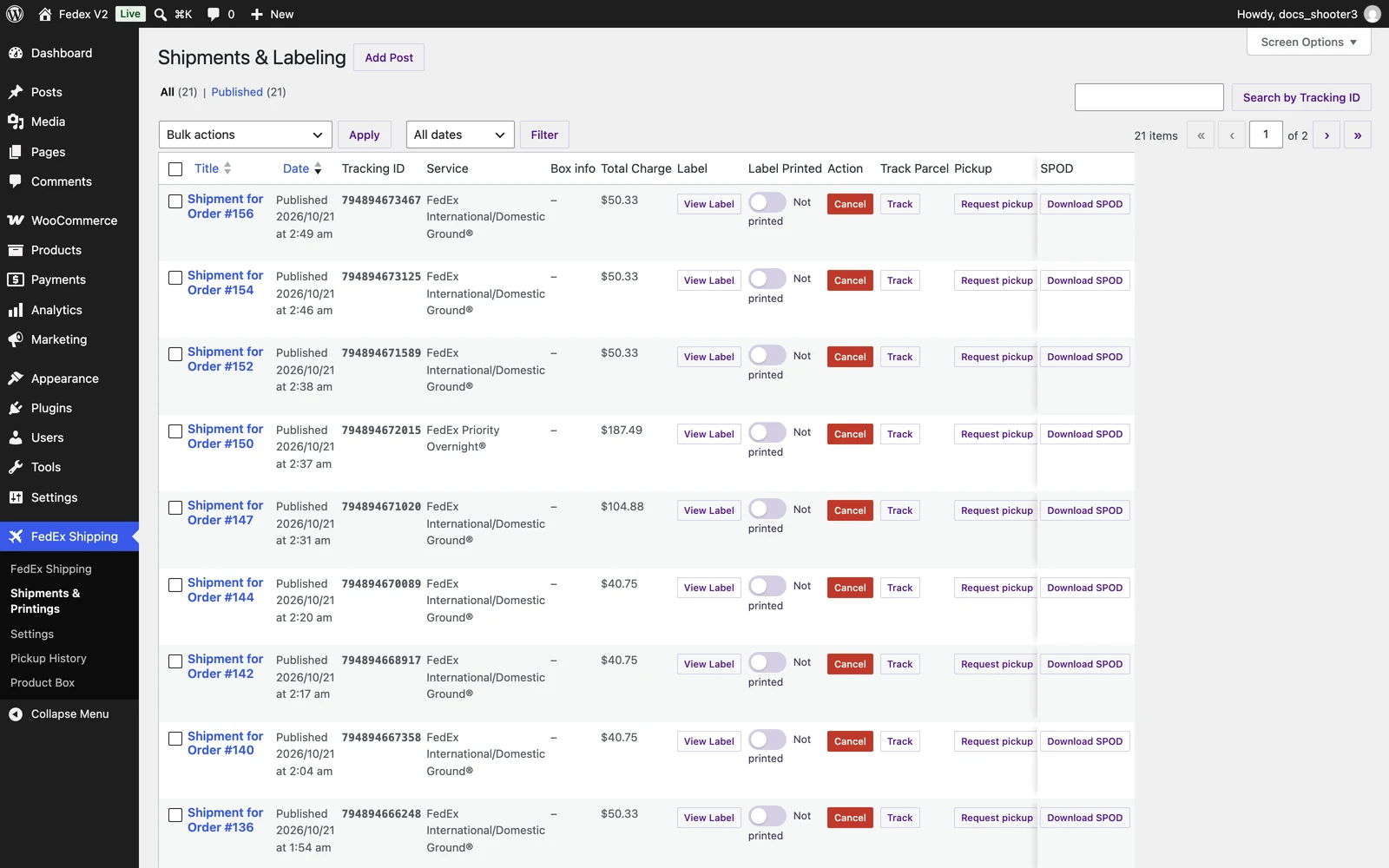 The Shipments & Printings list — one row per shipment.
The Shipments & Printings list — one row per shipment.5
The customer gets an email about 5 minutes later
About five minutes after the label is created, WooCommerce sends the customer an email with the subject Your Shipment Has Been Created - Order #123 (with their real order number).The email contains: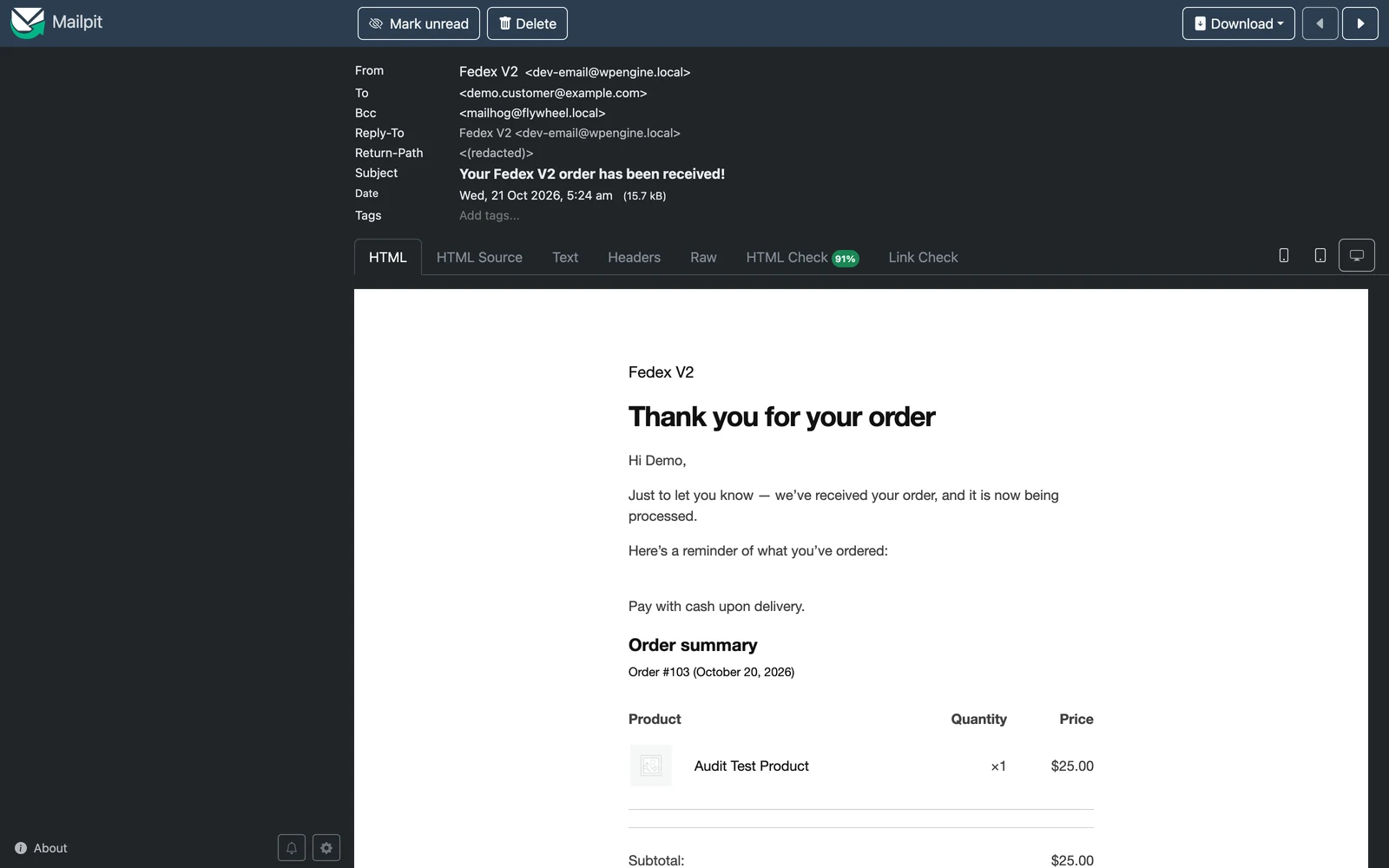 The shipment email, with the tracking number and the Download Label link.
- The shipping cost.
- The tracking number.
- A Download Label link, so the customer can download and print the label without asking you.
- A Printable Order Copy download.
The shipment email, with the tracking number and the Download Label link.6
Tracking updates as the package moves
Once you set up the tracking webhook, FedEx pushes progress updates back to your store. The Status badge on the shipment row changes as the package moves, and notes are added to the WooCommerce order. When FedEx reports delivery, the plugin marks the order as completed and adds a note confirming delivery.The webhook is not set up automatically. You copy a URL from the plugin and paste it into your FedEx developer project — the full walkthrough is in Tracking webhooks.
In this version, tracking numbers are not added to WooCommerce’s own order emails or to the customer’s My Account area. Customers see tracking in the shipment email above, or on a tracking page you set up — see Tracking.
Viewing and printing labels
All labels are printed from WordPress Admin → FedEx Shipping → Shipments & Printings. Click View Label in the Label column of the shipment row. The button opens the label PDF straight from your site, so it works even if the original link from FedEx has expired. Multi-box shipments: if the order was packed into more than one box (see Product Box), two things appear on the row:- The Box info column lists each box and the products inside it.
- The Label column shows one button per box — for example Box 1 label — next to View Label, which opens the merged PDF with every box’s label.
A multi-box shipment has one master tracking number and one label per box. FedEx scans each box separately, so the tracking timeline can show partial movement while some boxes are still in transit. See Multi-piece shipments.
Deletion warning
Deleting a shipment that has been cancelled also permanently deletes the linked WooCommerce order — order, items, and history. This happens when a deleted-in-Trash shipment is removed for good (for example, via Empty Trash). Shipments that are not cancelled are protected: WordPress blocks deleting them until they are cancelled. Moving to Trash and restoring is safe. Empty Trash is not.
Cancelling a shipment
Instant shipments can be cancelled from the shipments list at any time — you do not need to call FedEx. When you cancel:- The plugin asks FedEx to cancel (void) the label.
- The shipment row is marked Canceled, and the Cancel button becomes a disabled Canceled button.
- The linked WooCommerce order is set to Cancelled, with the order note “Shipment canceled”.
Cancelling does not move money in either direction. The plugin cancels the label on the FedEx side and sets the WooCommerce order to Cancelled. It does not refund your customer — use WooCommerce’s own refund process if you owe one — and this documentation makes no claim about how FedEx handles the charge for a voided label. Check your FedEx invoice or ask FedEx billing if you are unsure.
Trade documents (customs upload)
International shipments sometimes need customs paperwork after the label exists. The Trade docs column handles this without leaving the list. Click Upload docs in the Trade docs column. A window titled Trade Documents Upload opens (“Upload customs documents in a clean, paperless flow.”). It shows the shipment’s details — tracking number, shipment date, origin and destination — and lets you attach up to five documents per request and send them straight to FedEx. The supported document types and what each one is for are listed in International ETD. After uploading, the badge in the Trade docs column changes to Uploaded with the number of documents. If FedEx rejects a file, the badge shows Failed with the reason underneath. This is the post-shipment half of paperless customs — what it is and when FedEx requires it is covered in International ETD.There is no customs-document upload box on the WooCommerce order screen in this version. Trade documents are uploaded from this list (and from Open Shipments in Advanced mode).
Status badges
The Status column shows a colored badge for every shipment — Label created, Pending, In transit, Out for delivery, Delivered, Exception, Customs, or Customs hold. The full legend, badge by badge, is in Shipments & Printings. Badges change as FedEx events arrive at your store. To receive them, set up the tracking webhook — see Tracking webhooks.What can block a label
When Instant mode is unavailable
The Shipments & Printings menu item only exists in Instant mode. If your store is in Advanced mode, the menu item disappears and is replaced by Open Shipments — labels are then created when you confirm each shipment by hand, not at checkout. To check which mode you are in:- Go to WordPress Admin → FedEx Shipping → Settings.
- Open the Shipping tab.
- Look at the Shipping mode field. It shows Instant Shipping (Ship API) or Advanced Shipping (Open Ship API).
Related
Shipments & Printings (label manager)
Every column, button, and bulk action on the label manager page — the daily home of Instant mode.
Open Ship (Advanced mode)
Edit packages by hand and confirm labels yourself, instead of buying them at checkout.
Tracking
How customers check a package’s progress, and how to add a tracking page to your store.