

Before you install
Check three things before you start: your store, your hosting, and your FedEx account. This takes about five minutes and prevents almost every setup problem.Your store
The plugin runs inside WooCommerce, so WooCommerce needs to be installed, active, and actually set up — not just present.- WordPress 6.x or newer, with WooCommerce installed and activated. The plugin is tested with WooCommerce up to version 11.2.
- At least one product added. You will need it to place a test order later.
- At least one shipping zone that covers the places you ship to. A shipping zone is a WooCommerce rule that decides which shipping options a customer is offered, based on where they are. You can review yours under WooCommerce → Settings → Shipping.
- Your store address entered under WooCommerce → Settings → General. This matters more than it looks: FedEx calculates prices and prints labels for packages that start at a real physical address, and that address is your shop. You will enter it again in the plugin’s own settings on the next page, so the two should match.
Your hosting
The plugin needs PHP 7.4 or newer. PHP is the language WordPress runs on, and your host almost always handles this for you. To check yours, go to Tools → Site Health in your WordPress admin and open the Info tab — the PHP version is listed under Server. If it is older than 7.4, ask your host to update it. Hosts do this on request, usually at no cost.Your FedEx account
You need a FedEx shipping account — the account your packages are billed to. If you already ship with FedEx, you have one, and the account number is printed on any FedEx invoice. You will use this account on the next page to create a free set of test credentials. The full, current version matrix — WooCommerce versions, HPOS, block checkout, multisite — is on Compatibility.Install the plugin
- From WordPress.org
- From a ZIP file
1
Open the plugin installer
Go to WordPress Admin → Plugins → Add New.
2
Search for the plugin
Enter
Teamzlab Fedex in the search box.3
Install it
Click Install Now on the card titled Teamzlab Fedex (the plugin’s name on the Plugins screen). WordPress downloads and installs the plugin, and the button changes to Activate.
4
Activate it
Click Activate.
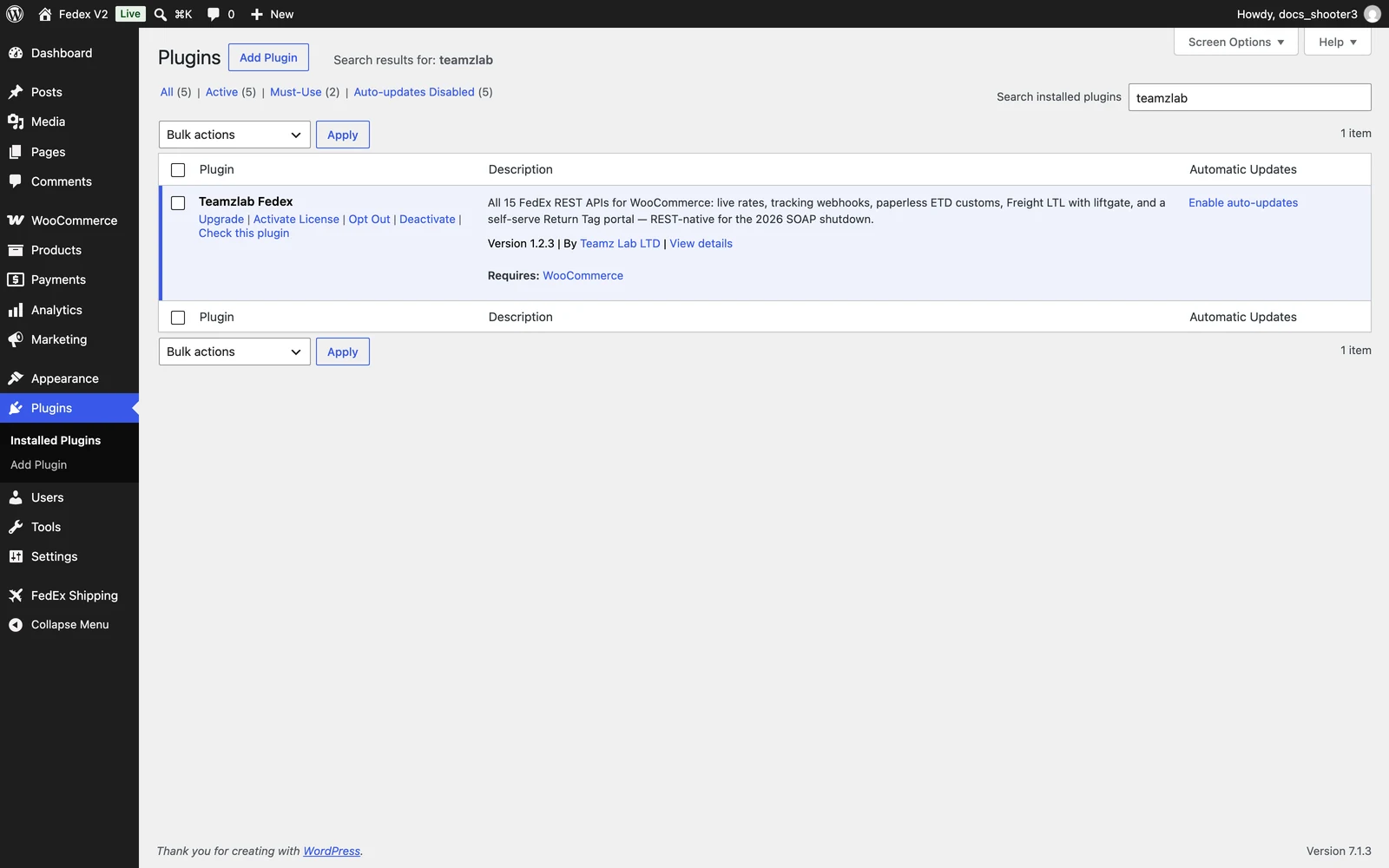 The Plugins list, with Teamzlab Fedex active.
If installation fails
Three problems cover almost every failed install. All of them are WordPress behaving normally, not the plugin misbehaving.- “Destination folder already exists.” A previous install attempt left a half-copied folder behind. Go to Plugins, delete the existing “TeamzLab FedEx Shipping” entry if it is listed there; if it is not listed, your host’s file manager (or a developer) needs to remove
wp-content/plugins/<the plugin folder>— then install again. - The upload stops or times out. WordPress limits upload file sizes (often 2–8 MB depending on the host) and PHP memory. If the ZIP upload fails silently or shows an “exceeds the maximum upload size” message, install via the WordPress.org tab instead — the plugin installs from the repository without any upload — or ask your host to raise
upload_max_filesize. - “Plugin could not be activated because it triggered a fatal error.” This almost always means PHP is older than 7.4. Check Tools → Site Health → Info → Server. If PHP is current, turn on WP_DEBUG (your developer, or Troubleshooting) and collect the error text before contacting support.
What you should see after activation
A new menu, FedEx Shipping, appears in the left sidebar of your WordPress admin, with an airplane icon. Under it you will find:- Shipments & Printings — every shipment you create, with its labels.
- Pickup History — the pickups you schedule through the plugin.
- Product Box — where you save your box sizes and match products to boxes.
- Settings — where you connect your FedEx account.
- Your WordPress dashboard also gains a Recent Shipments widget that lists your latest shipments.
- If you later switch the shipping mode to Advanced (a choice under Settings → Shipping), the Shipments & Printings menu is replaced by Open Shipments. You do not need to think about this now — the default mode suits most stores.
Your storefront does not change yet
The plugin changes nothing your customers can see until two things happen:- You save FedEx credentials — see Connecting FedEx credentials.
- You add the Fedex Shipping method to at least one shipping zone — see Adding FedEx to a shipping zone.
If you deactivate or delete the plugin later, your customers are not left without shipping: WooCommerce automatically falls back to the other methods in your zones. Deactivating keeps your settings and shipment records. Deleting the plugin removes its data — see Uninstalling.
What the plugin stores on your site
Three kinds of data, all visible inside your WordPress admin:- Your settings — everything you enter on the Settings page is kept together in one settings record in your WordPress database.
- Shipments — each shipment is saved as a private record in your WordPress admin. Only logged-in store managers can see these; visitors and search engines cannot.
- Labels — label PDFs are stored in
wp-content/uploads/fedex-labels/(return labels infedex-return-labels/). This is a protected folder inside your site’s uploads area that WordPress manages for you; its files are not publicly accessible.
What’s next
Connect FedEx credentials
Get free test keys from the FedEx developer portal and enter them in the plugin.
Quick start
The short path from installation to your first test label.
Updating the plugin
How updates work and what to check afterwards.