

Deactivating: temporary, nothing is deleted
Deactivating only switches the plugin off. Nothing is deleted. While the plugin is deactivated:- Your store stops showing FedEx prices at checkout and stops creating labels.
- Your settings, shipment records, and order history are all kept exactly as they are.
- WooCommerce serves your customers with whatever other shipping methods you have set up in your shipping zones — this is why it is worth having a flat-rate or table-rate method configured alongside FedEx.
Before you delete: a warning about shipment records
Permanently deleting a shipment record on the Shipments & Printings list also permanently deletes the WooCommerce order it belongs to. The order disappears from your store along with its history. Deletion here cannot be undone.
- Only canceled shipments can be moved to the trash or deleted. Active shipments are protected — WordPress refuses the delete for them.
- Moving a shipment to the trash is safe. The order is only deleted when you permanently delete the shipment record from the trash.
- The safe order of operations: to remove a test order, delete the WooCommerce order first — its shipment record is removed with it automatically. Never start by permanently deleting the shipment record.
What deleting the plugin removes
When you click Delete on the Plugins page, WordPress runs the plugin’s built-in cleanup. The following is removed:
The cleanup is thorough on WordPress multisite networks too — every site in the network is cleaned.
What stays with your store
How to delete the plugin
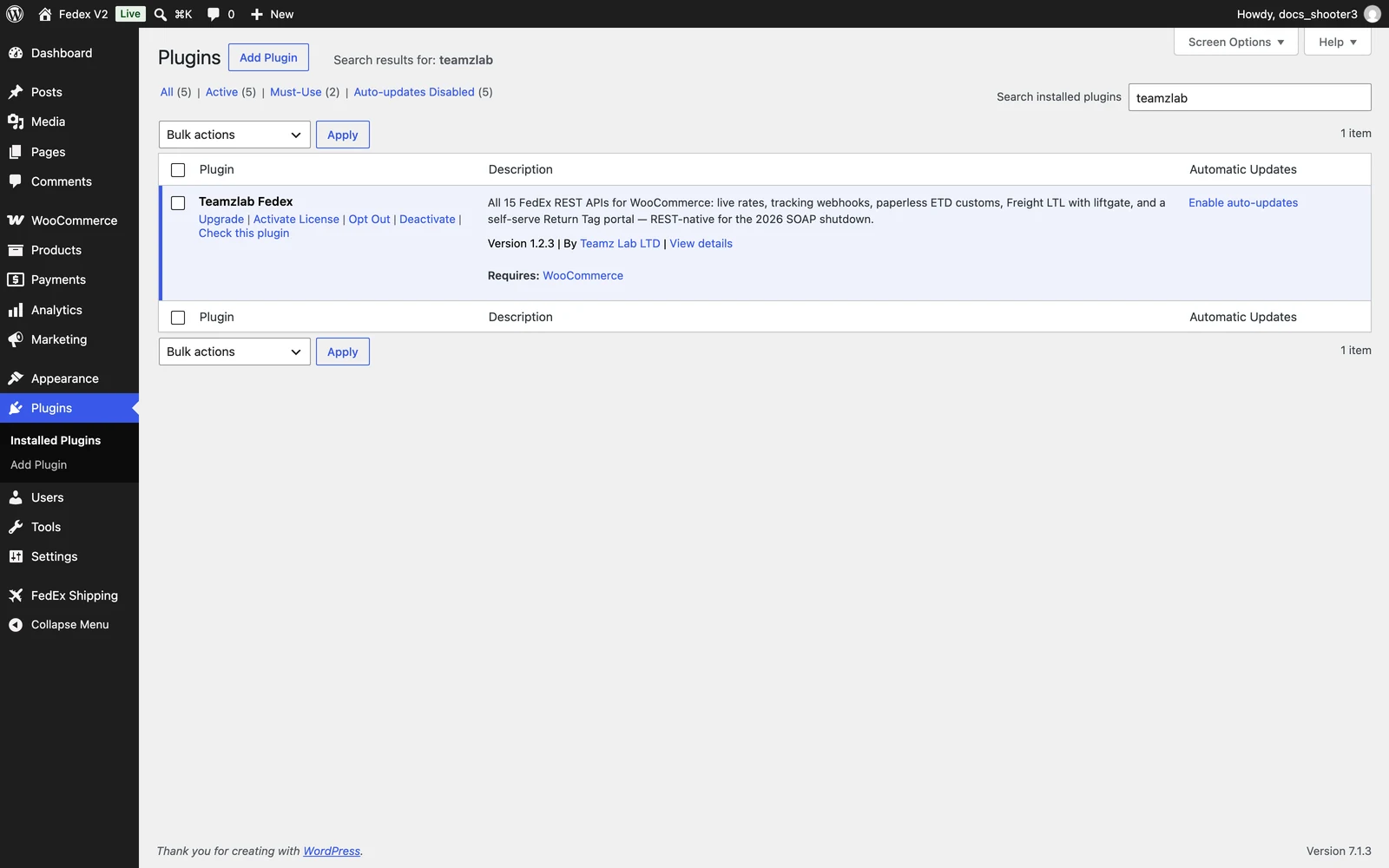 The WordPress Plugins page. Deactivate stops the plugin; Delete removes it and runs the cleanup described above.
1
Back up your site
Make a backup first if you do not have a recent one. It is good practice before removing any plugin. The backup protects you if you change your mind later.
2
Open the Plugins page
WordPress Admin → Plugins
3
Deactivate the plugin
Click Deactivate under Teamzlab Fedex (the plugin’s name on the Plugins screen). The plugin stops working but keeps its data.
4
Delete the plugin
Click Delete, then confirm. WordPress runs the plugin’s cleanup: settings, shipment records, and per-zone method settings are removed. Your orders stay.
A few saved items may remain
The cleanup removes everything the plugin owns, but a few items stored with your WordPress site are left behind on purpose or by oversight:- Box templates from the Product Box page are kept, because WordPress treats them as saved store data rather than plugin settings.
- Cached sign-in tokens under some configurations survive the cleanup. They expire on their own and stop working within hours.
- Label PDF files in the protected labels folder stay on your server until you remove them.
What’s next
Security notes
How the plugin handles keys, secrets, and the destructive operations to know about.
Troubleshooting
Diagnosing problems before you decide to remove the plugin.