

What you need from FedEx
Two things:- Your FedEx account number. The account your shipments are billed to. You can find it printed on any FedEx invoice, or by logging in at fedex.com and opening your account details.
- A developer account at developer.fedex.com. This is FedEx’s portal for software connections, and creating one is free. You sign in to it with your FedEx account.
Create your developer project and get test keys
FedEx updates this portal regularly. If the screens look different from the steps below, follow the portal’s current project-creation flow — the exact button names may differ, but the outcome you need is always the same: an API Key, a Secret Key, and a test account number.
1
Sign in
Go to the FedEx Developer Portal and sign in with your FedEx account.
2
Create a project
Create a new project. A project holds the keys that let your store talk to FedEx on your behalf.
3
Turn on the APIs the plugin uses
Inside the project, enable these APIs:
The full list of FedEx APIs is in their API catalog. The plugin can also use a few other APIs for optional features — scheduled pickups, paperless customs documents, the location finder — and you can add those to the same project later if you need them.
4
Stay in test mode
Keep the project in its test (sandbox) mode. Test keys are free, and anything created with them is a test.
5
Copy your test account number
FedEx gives the project a test account number together with the keys. Copy it and keep it with the keys. It is not the same as your real account number — FedEx does not accept real account numbers in test mode.
6
Copy the API Key
The API Key acts like a username. Copy it somewhere safe.
7
Copy the Secret Key
The Secret Key acts like a password. FedEx shows it only once — copy it immediately and store it safely, ideally in a password manager.
Enter the keys in your store
All keys go in one place: WordPress Admin → FedEx Shipping → Settings The Settings page has five tabs. You will fill in three of them: Authorization, Tracking, and Account. One Save Changes button at the bottom saves all tabs at once — you do not need to save each tab separately.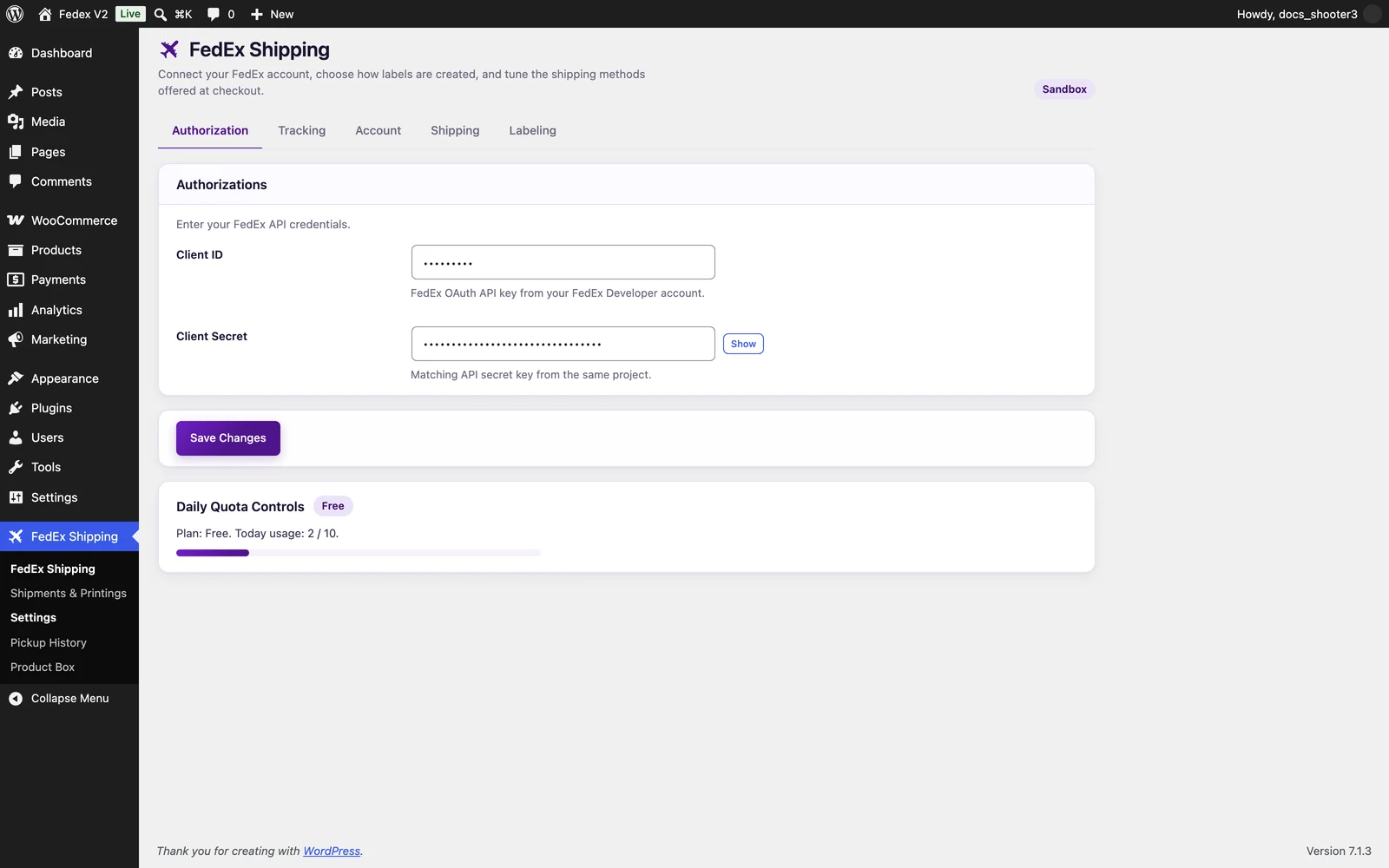 The Settings page, Authorization tab, with the two credential fields.
Authorization tab
This tab holds the main keys — the ones used for prices, labels, pickups, and everything except tracking.1
Enter the Client ID
Enter the API Key you copied from FedEx into the Client ID field.
2
Enter the Client Secret
Enter the Secret Key into the Client Secret field. The field hides what you type; use the Show/Hide button next to it if you want to check what you pasted.
Tracking tab — only if you want tracking updates
Tracking uses a second pair of keys, stored on its own tab, and there is no fallback to the main keys. If you leave the Tracking tab empty, prices and labels work normally but tracking stays silently dead — no error appears anywhere to tell you.
The Tracking tab also has a Tracking Webhooks (AIV) section with a Webhook Shared Secret field and a copyable webhook address. That section is for FedEx pushing tracking updates to your store automatically, and it has its own setup — see Tracking webhooks.
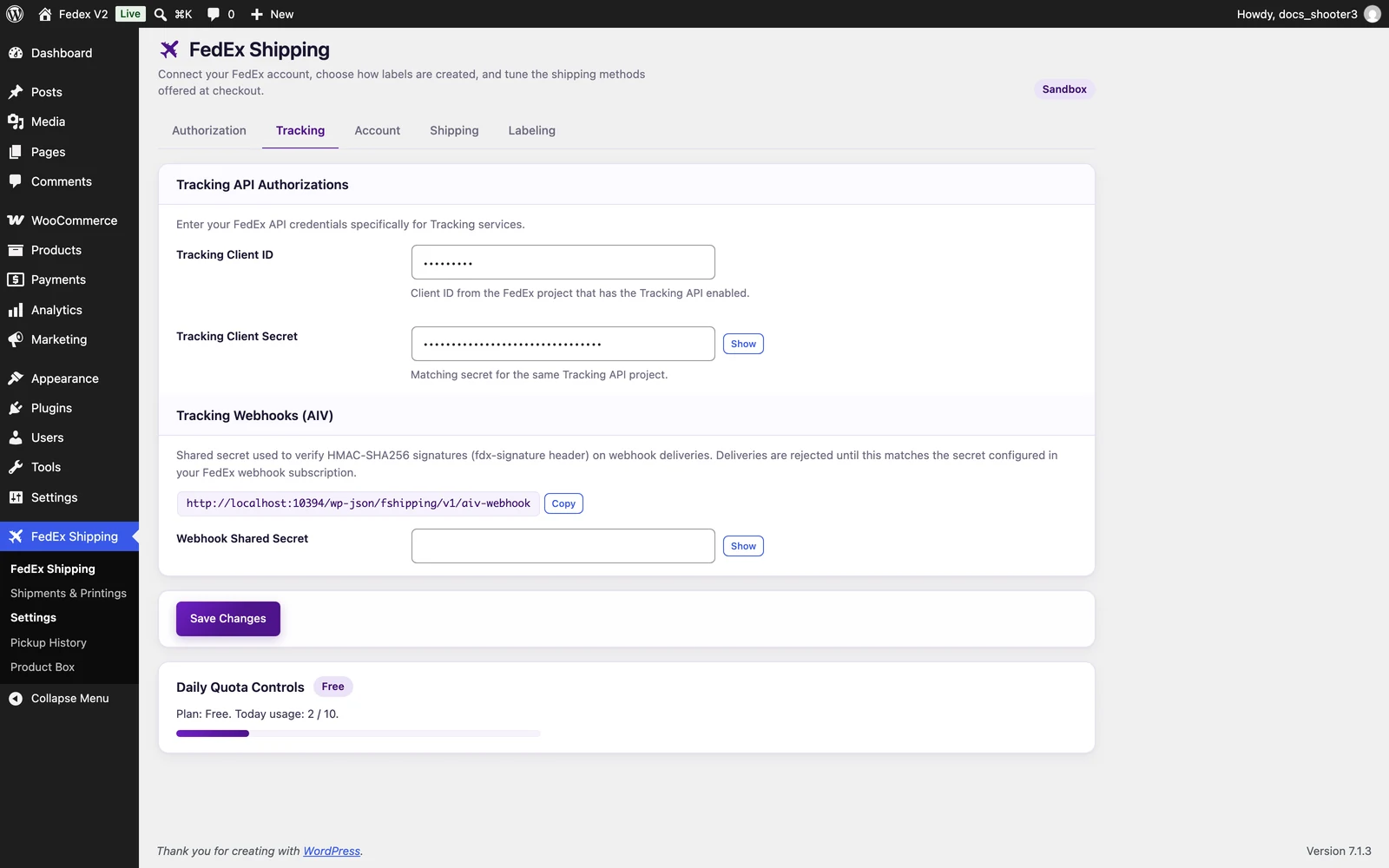 The Tracking tab. The Tracking Webhooks (AIV) section sits below the two credential fields.
Account tab
The Account tab tells FedEx who is shipping, and from where.While you are using test keys, the Account Number must be the test account number from your developer project. FedEx rejects real account numbers in test mode.
- Labels ship from it. The address on this tab is the origin printed on your shipping labels.
- Return labels are addressed to it. When a customer creates a return, the label sends the parcel to this address.
- Rate quotes start from it. FedEx calculates checkout prices from this origin to the customer’s address.
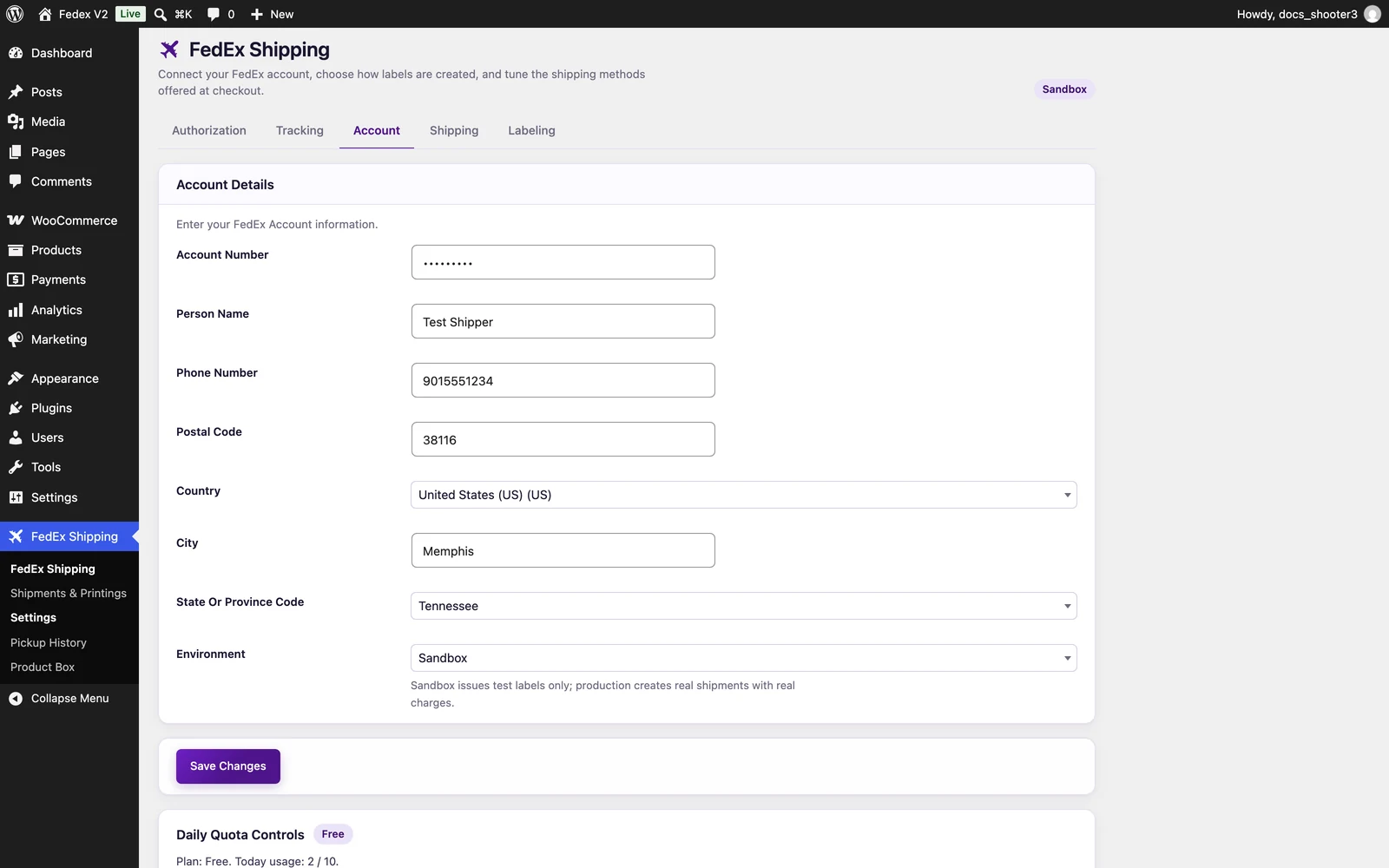 The Account tab. The Environment dropdown is the last field, below the address details.
Save
1
Save Changes
Scroll to the bottom of the Settings page and click Save Changes. The page reloads and WordPress confirms your settings were saved. The badge at the top of the Settings page now shows Sandbox — a quick visual check that you are in test mode.
The quota panel
At the bottom of the Settings page, below the Save Changes button, sits a Daily Quota Controls panel. It shows your plan and how many shipments you have created today — for example “Plan: Free. Today usage: 3 / 10.” — with a progress bar, and the note “Quota is currently reached.” on days when you hit the limit.There is no reset button — the panel only displays usage, and the counter starts fresh on its own each day. If you reach the limit, FedEx rates stop appearing at checkout until the next day.
Test that it worked
The plugin has no “test connection” button, and that is not a gap: saving your settings and getting real rates at checkout is the test. Requesting rates is the first thing the plugin does with your keys.1
Add FedEx to a zone
In WooCommerce → Settings → Shipping, edit a shipping zone and add the Fedex Shipping method. If you have not done this before, follow Adding FedEx to a shipping zone.
2
Check out with a test product
Open your store, add a product to the cart, and go to checkout.
3
Enter a shipping address
Enter any address inside the zone. FedEx rates appear under the shipping options within a few seconds — that is your confirmation the keys work.
You are in Sandbox, so none of this touches the real world: test labels never move real packages, and nothing is charged.
teamzlab_fedex_shippnig (the source name really is spelled that way in the code). To understand how those checkout prices are produced in the first place, see How checkout rates work.
When you are ready for real shipments
Production keys come from the same developer project, with one difference: you must request production access, and FedEx reviews the request first. Approval takes 3–5 business days — that is FedEx’s process, not the plugin’s, so plan for it. Once approved, you receive a production API Key and Secret Key, and switch the Environment dropdown to Production. What to check before you flip that switch, and what starts costing real money, is a short checklist on its own page: Going live.Never share your Secret Key with anyone. No one from FedEx — and no one from TeamzLab — will ever ask for it. If someone does, treat it as a scam.
What’s next
Going live
The sandbox-to-production switch, and what to check first.
Adding FedEx to a shipping zone
The other half of making rates appear at checkout.
Troubleshooting
No rates, wrong prices, silent tracking — start with the checkout checklist.