

Open the page
WordPress Admin → FedEx Shipping → Shipments & Printings The menu item is visible only when Shipping mode is Instant Shipping (Ship API). In Advanced mode it is replaced by Open Shipments — see Using Advanced mode at the bottom of this page.The menu says Shipments & Printings, but the page heading and browser tab read Shipments & Labeling. They are the same page — WordPress shows a different title inside the page than in the menu. This guide uses the menu name you click.
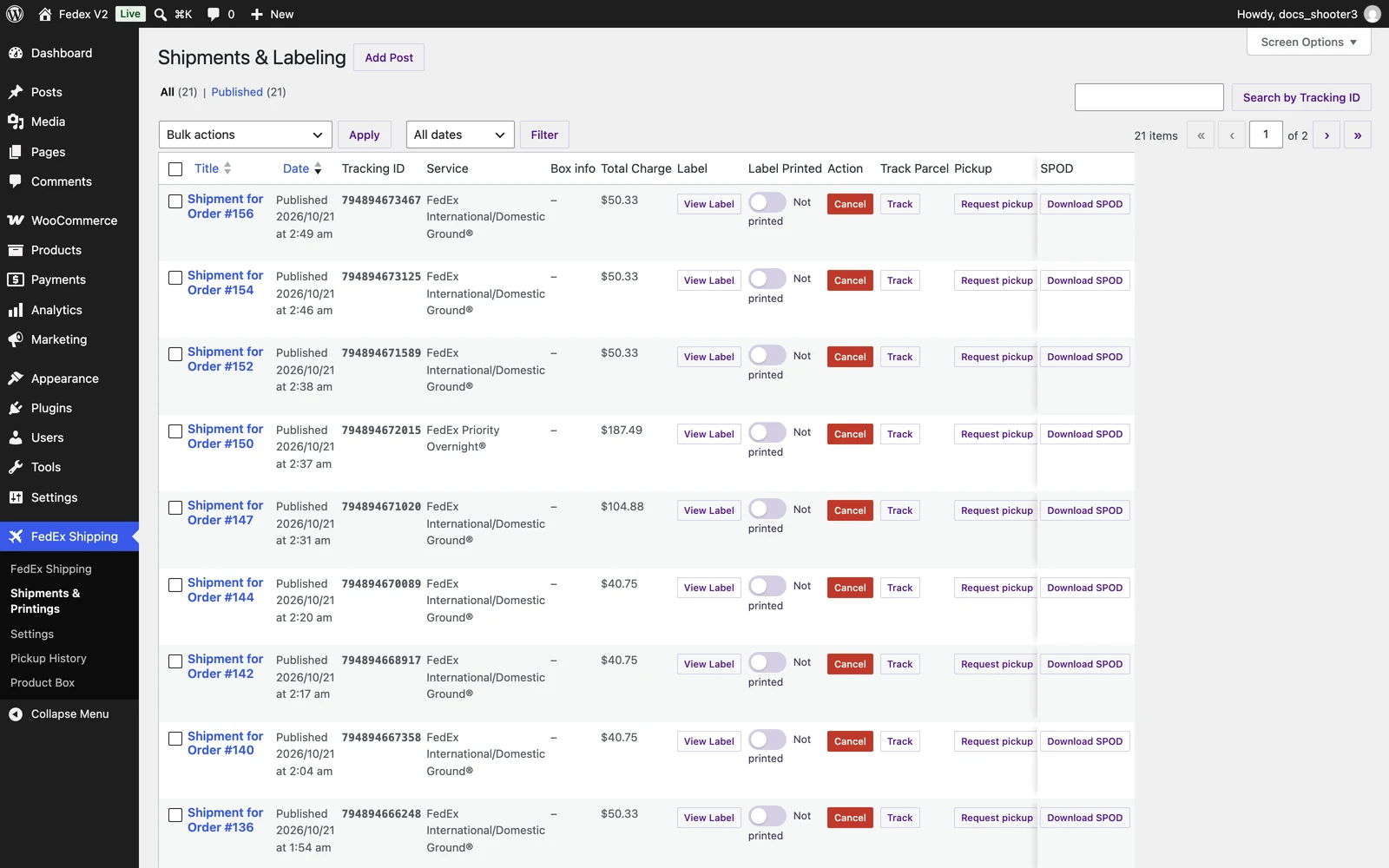 The Shipments & Printings list — each row is one shipment with its label, tracking, and status controls.
When you need this page
- Print labels for the day’s orders before the pickup arrives.
- Check whether a label was actually created for an order.
- Cancel a shipment that is not going to ship.
- See where a package is right now.
- Send customs documents to FedEx for an international shipment.
- Download a signature proof of delivery after a package is delivered.
The columns, explained
Besides the plugin columns below, the list shows WordPress’s own columns: a checkbox for bulk selection, the shipment title (for example, Shipment for Order #123) with a View Order link underneath, and the Date.
Rows are tinted so you can scan the list at a glance: cancelled shipments and printed shipments stand out.
Daily label printing
The most common routine: print the day’s labels and mark them as printed.1
Open the list
WordPress Admin → FedEx Shipping → Shipments & PrintingsThe newest shipments are at the top. Use the date filter or the search box to narrow the list — the search box finds shipments by FedEx tracking number.
2
Print the label
Click View Label in the Label column. The label PDF opens; print it and attach it to the box.On a multi-box shipment, print each box separately with the per-box buttons (Box 1 label and so on), or print the merged PDF from View Label.
3
Mark it as printed
Click the switch in the Label Printed column. It flips from Not printed to Printed.This is optional but recommended: it lets anyone on your team see at a glance which labels still need printing, and printed rows are tinted in the list.
Cancelling a shipment
1
Find the shipment
Search by tracking number or use the date filter, and confirm you have the right order — the View Order link under the shipment title opens the WooCommerce order.
2
Click Cancel in the Action column
There is no confirmation popup — the cancellation starts immediately, so make sure the row is the right one first. The button shows Canceling… while the request runs.
3
Check the result
The button becomes a disabled Canceled button and a notice confirms: “Your shipment has been canceled.” Behind the scenes, the plugin asked FedEx to cancel (void) the label and set the linked WooCommerce order to Cancelled, with the order note “Shipment canceled”.If it fails, you will see “Shipment could not be canceled”. Check the shipment’s Status badge and try again.
Cancelling does not move money in either direction. The plugin cancels the label on the FedEx side and sets the WooCommerce order to Cancelled. It does not refund your customer — use WooCommerce’s own refund process if you owe one — and this documentation makes no claim about how FedEx handles the charge for a voided label. Check your FedEx invoice or ask FedEx billing if you are unsure.
- A shipment that is not cancelled cannot be trashed or deleted. WordPress blocks it until you cancel first.
- Permanently deleting a cancelled shipment (for example, via Empty Trash) also permanently deletes the linked WooCommerce order. Moving to Trash and restoring is safe; emptying the Trash is not.
Tracking a parcel
Click Track in the Track Parcel column. A popup card headed Shipment Details opens with rows for Tracking Number, Current Status, Delivery Date, Service Type, and Route. The button changes to Track Again so you can refresh without closing the list. The Status column badge always shows the last status your store received; the Track popup asks FedEx for the current details on the spot.Pickups, returns, and SPOD in each row
Pickup. Click Request pickup to ask FedEx to collect this package. When it works, you will see “Your pickup was scheduled with FedEx.” and the Pickup column switches to showing the confirmation number with a Cancel button next to it. Clicking that Cancel removes the scheduled pickup — you will see “The pickup was canceled.” For one consolidated pickup covering all ready shipments, use Pickup History instead. Return. Click Create return to create a FedEx return label for the order. When it completes, the button becomes a Return label link that opens the return label PDF. This creates the label only — for a customer-facing self-serve return form, see Returns. SPOD. SPOD (signature proof of delivery) is a PDF showing who signed for a delivered package. Click Download SPOD to request it from FedEx. FedEx only provides a SPOD for delivered Express or Ground shipments, and never in the sandbox — otherwise you will see “SPOD not available yet. FedEx returns SPOD only for delivered Express/Ground shipments; signature images are not available in sandbox.” Once downloaded, the button becomes a SPOD PDF link you can reopen any time.Trade documents upload
The Upload docs button in the Trade docs column opens the Trade Documents Upload window (“Upload customs documents in a clean, paperless flow.” — marked with a FedEx ETD pill). The button is disabled for cancelled shipments and for shipments without a tracking number. The window has two sections:- Request Details — the shipment context: Mode (Upload Documents for PDFs, Upload Images for image files), Workflow (set to ETDPostshipment for uploads from this page), Carrier (defaults to FDXE), Tracking Number, Shipment Date, and optional origin/destination country, location, and form codes.
- Documents — click Add document for each file, pick its document type, then click Upload to FedEx. The footer reminds you of the limit: “Max 5 items per request.”
There is no customs-document upload box on the WooCommerce order screen in this version — trade documents are uploaded from this list (and from Open Shipments in Advanced mode). What ETD is and when FedEx requires it: International ETD.
Bulk actions
Select rows with the checkboxes, pick an action from the menu above the list, and click Apply.Finding shipments
- Search box (“Search by Tracking ID”) — matches FedEx tracking numbers. To match a shipment to an order, open View Order on the row.
- Date filter — the standard WordPress date dropdown above the list narrows the list by month.
- All / Trash tabs — trashed shipments sit in the Trash view. Restoring one puts it back in the main list; deleting one from the Trash permanently removes it and the linked order.
Status badge legend
Badges update as FedEx events arrive at your store. To receive them, set up the tracking webhook — see Tracking webhooks.
Where the files live
Label PDFs, return labels, and signature documents are stored in a protected folder inside your site’s uploads directory that the plugin creates and manages for you (the label folder is namedfedex-labels; return labels and signature documents live in their own protected folders alongside it). The folder is blocked from public access.
You never need to open these folders or touch files. Every document is one click away on this page — and if a link ever expires, the buttons here serve the copy stored on your site.
Using Advanced mode
If your Shipping mode is set to Advanced Shipping (Open Ship API) (check under WordPress Admin → FedEx Shipping → Settings → Shipping), this menu item is hidden and replaced by Open Shipments, where labels are created when you confirm each shipment by hand. See Open Shipments.Related
Instant labels: from order to printed label
The full journey of an Instant-mode shipment, from checkout to the customer email.
Open Shipments
Using Advanced mode? This menu replaces Shipments & Printings.