

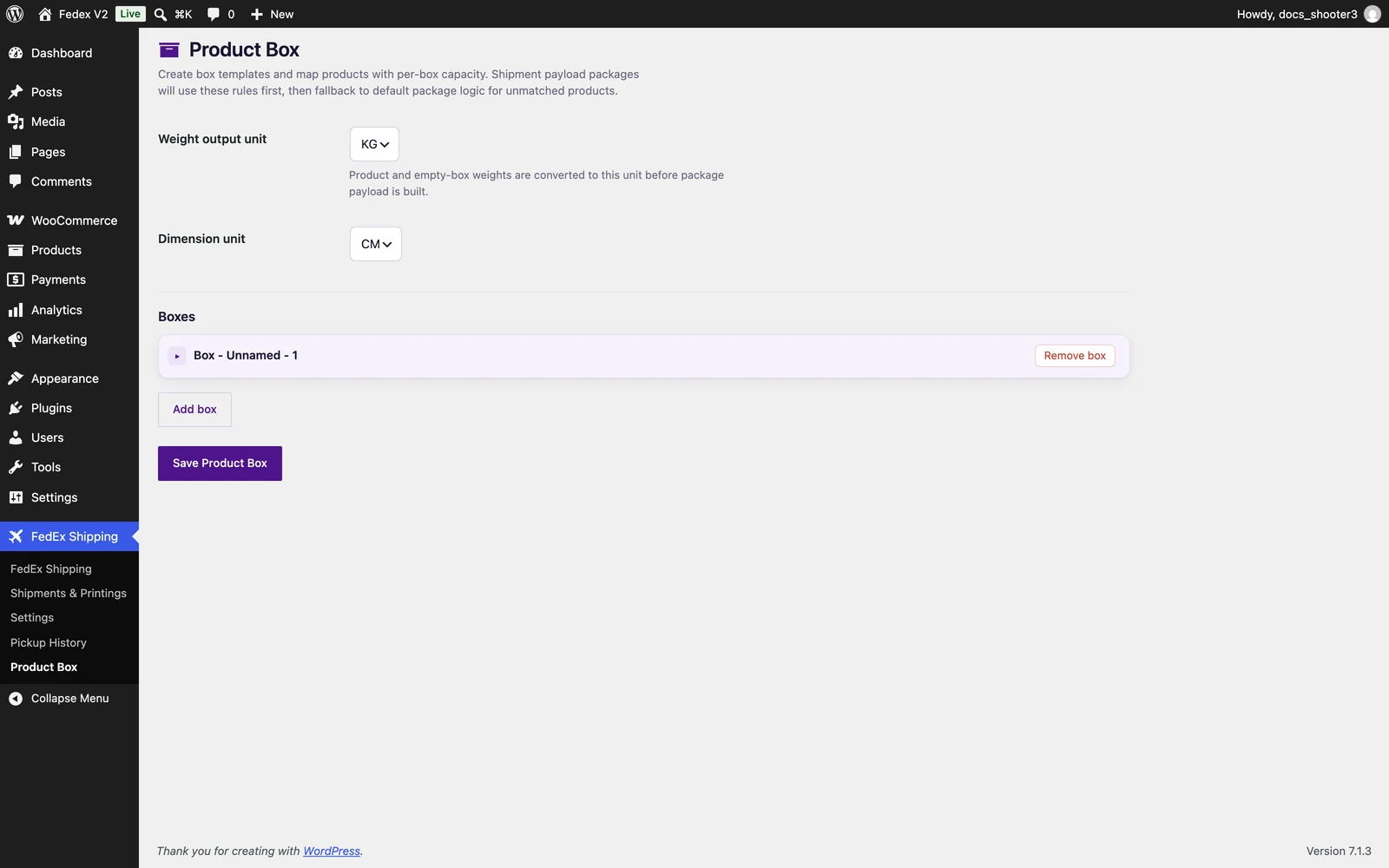
 The Product Box page, where you create box profiles and assign products to them.
Why it exists
Every FedEx label must state what is being carried: how many packages there are, and the weight and size of each. By default the plugin sends the whole order as one combined package. That is fine for single-product stores, but it stops matching reality the moment an order needs two or three cartons. Product Box fixes this at label time. You describe your cartons once; the plugin does the packing for every future order.When you need it — and when you can skip it
Create a box profile
1
Open the Product Box page
Go to WordPress Admin → FedEx Shipping → Product Box.At the top you will see two unit fields: Weight output unit (choose KG or LB) and Dimension unit (choose CM or IN). These set the units used across the whole page. Below them is the Boxes section.
2
Click Add box
A new box card appears under Boxes. Each card has a Box toggle to collapse or expand it and a Remove box button to delete it.
3
Fill in the box details
- Name — for example “Small carton”. A box without a name is ignored by the plugin, so always give it one.
- Dimensions — enter Length, Width, and Height, and pick CM or IN. All three numbers must be greater than zero, or the plugin ignores the box.
- Empty box weight — how much the empty carton weighs, with its own KG / LB / OZ / G selector. Zero is allowed.
4
Assign products and capacities
In the Products and capacity table, use the Select product search to pick a product, then enter Qty this box can hold — how many units of that product fit in this box. Click Add product row for each additional product, and Remove to delete a row.The search lists your published products (the first 500). Note that this assignment lives on the box, not on the product edit screen — you never need to edit a product to pack it.
5
Click Save Product Box
The page reloads with the confirmation “Product Box settings saved.” Your profiles are now active for every new shipment.
Two silent rules: a box with no Name, or with any dimension left at zero, is quietly ignored at packing time. If an order seems to be labeled as one package again, check those two fields first.
How packing works
When a label is created, the plugin looks at what is in the order and at your box profiles. For each box it works out a plan: the box is first dedicated to the product you have the most units of, filled up to that product’s capacity for that box, and then the leftover space is topped up with your other products. The plugin compares all the plans, commits the best one as one package (most products packed wins; the least wasted space breaks ties), and repeats with whatever is left until nothing more fits any box. Each package’s weight is the products inside plus the empty box weight, and its dimensions are the box’s own. FedEx receives one shipment containing one package per box.FedEx may bill by size as well as weight: it uses the box’s outer dimensions to decide whether to charge dimensional weight. Accurate box sizes therefore keep quotes and invoices in line with reality.
What changes, and what does not
This is the one fact to keep in mind about Product Box:
At quote time the plugin sends the whole cart to FedEx as a single package, so the price the customer sees is calculated once, for one parcel. The boxes only come into play after the order is placed, when the label is created.
If a product has no weight or size saved in WooCommerce, the quote for it assumes a 10 × 10 × 10 cm package weighing 1 kg.
When something does not fit
Anything the packing cannot place — a product no box claims, or a leftover that no longer fits anywhere — is not dropped. It travels in one generic package that is added to the same shipment, so nothing is left off the label and nothing is left unshipped. Its declared value covers exactly the products inside it.Product Box and Advanced mode
If your store uses Advanced shipping mode, the same packing runs when the order is placed: the draft waiting for you on the order screen starts with one package per box your profiles produced, each already showing that box’s weight and size. Package rows are named “Box 1”, “Box 2”, and so on. From there the packages are yours to shape. You can change a weight or a size, move products between boxes, or add and remove boxes on the order screen before you confirm — and when you assign products to a package row and save, its weight is recalculated for you from those products’ own weights. The plugin packs once, at order time; after that it never overwrites your edits. Without box profiles — or when nothing in the order matches a box — the Advanced-mode draft simply starts with one generic package.Editing or removing boxes
Change a profile on this page and click Save Product Box: the change applies to future labels only. Labels already created keep the packages they were printed with, so fixing a box size never rewrites your order history.Still testing? If the Environment select on Settings → Account is set to Sandbox, every label mentioned on this page is a test label only — nothing ships and FedEx charges nothing.
Multi-piece shipments
How one order travels in several packages in each shipping mode, and how the tracking numbers are organized.
Labeling tab
The packaging, payment, and print settings applied to the labels your boxes appear on.
Instant labels
The full path from checkout to a printed label in Instant mode.