

- Tracking API Authorizations — a second FedEx credential pair used only for tracking.
- Tracking Webhooks (AIV) — your store’s webhook address (with a Copy button) and a shared secret, used when FedEx pushes tracking updates to your store.
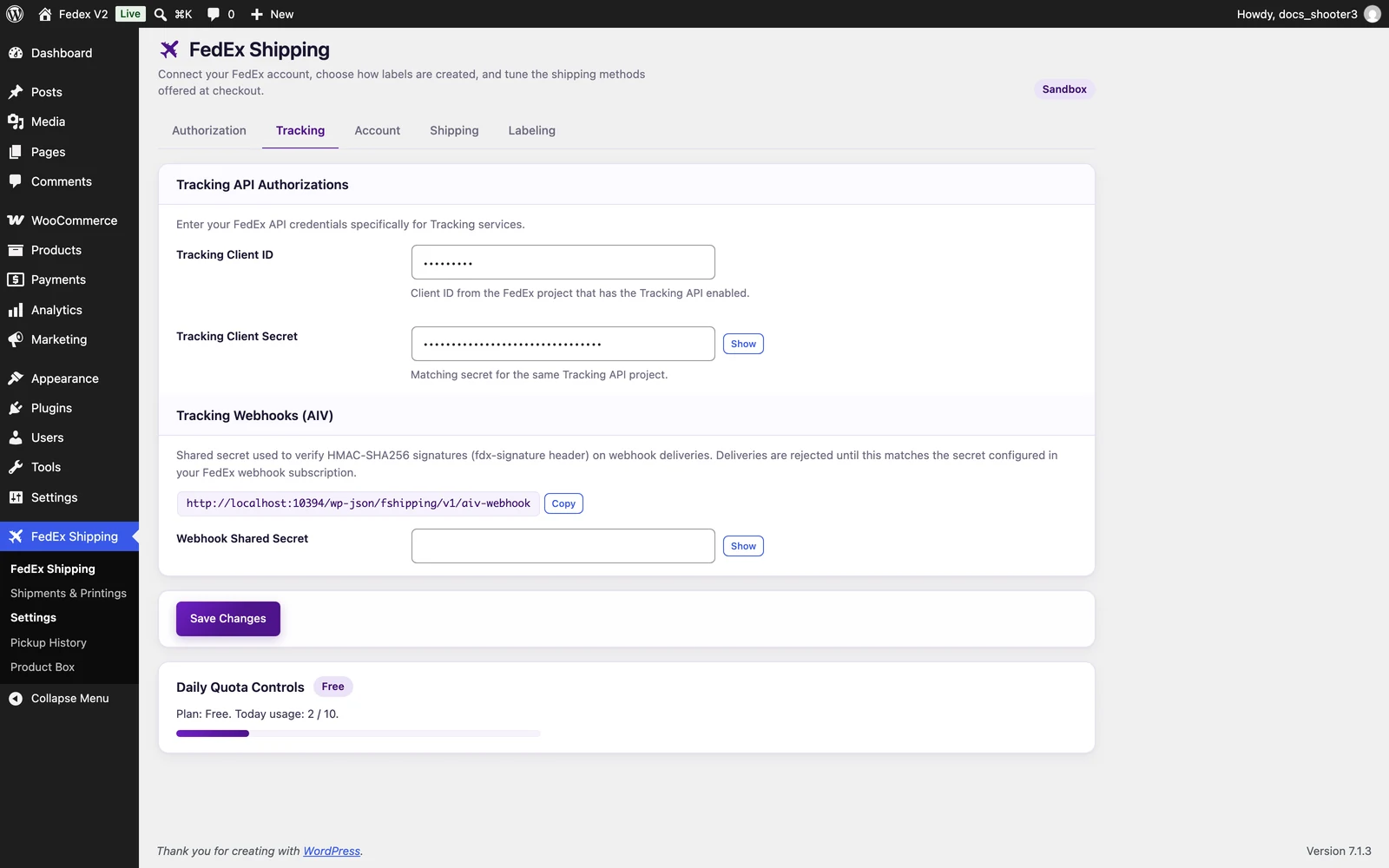 The FedEx Shipping settings page, Tracking tab. The Webhook Shared Secret section sits below the credential fields.
Why tracking has its own credentials
FedEx projects are usually split by API family, and a project that includes the Tracking API gets its own key and secret. The plugin mirrors that: the two fields below are used only for tracking. The plugin does not fall back to your main Authorization credentials when these are empty — see the Authorization tab.Tracking Client ID
A text field. The on-screen help text says: “Client ID from the FedEx project that has the Tracking API enabled.”Tracking Client Secret
A password field with a Show / Hide button. The on-screen help text says: “Matching secret for the same Tracking API project.”Leaving this credential pair empty does not break your store. Rates and labels keep working normally — but tracking quietly dies:
- the tracking form on your site returns no results,
- tracking timelines stay empty,
- live tracking lookups fail.
Tracking Webhooks (AIV)
FedEx can push tracking updates to your store automatically — every time a parcel is picked up, moves, or is delivered, FedEx sends the update to your store, and the plugin records it on the shipment. The Tracking Webhooks (AIV) section is what connects the two sides. (AIV is the name FedEx uses for this tracking-update service.) It has two parts:- the webhook URL, shown on the page with a Copy button. This is a web address belonging to your store — it is where FedEx should send the updates.
- the Webhook Shared Secret field. Think of it as a shared password FedEx uses to prove that its messages really come from FedEx.
Connect the webhook
In short: click Copy next to the webhook URL in the Tracking Webhooks (AIV) section above, paste it into your FedEx developer project’s webhook settings, set the same shared secret on both sides, and save this tab. The full walkthrough, event by event, is in Tracking webhooks.The plugin cannot do step 2 for you. There is no automatic subscription — you paste the URL into FedEx yourself. There is also no button to re-fetch updates that were missed while the setup was incomplete, so it is worth checking each step before you rely on webhook updates.
This section only matters if you use the tracking webhook. The tracking form and timelines on your site work without it — they ask FedEx directly, using the credential pair at the top of this tab.
Related
Tracking webhooks
The full webhook setup, including what happens when the secret does not match.
Tracking
Where customers see tracking progress on your store.
Troubleshooting
Tracking not updating? Start here.