

What a shipping zone is
WooCommerce decides which delivery options a customer is offered by matching their address against shipping zones. A zone is a region you define — for example a whole country, a group of states, or a list of postcodes. Each zone contains one or more shipping methods (such as a flat rate or FedEx rates), and a customer is offered every method from every zone that matches their address. If you have never worked with zones, WooCommerce’s own guides explain them well: WooCommerce shipping and Shipping zones.Add the FedEx method to a zone
You do this once per zone.1
Open the shipping settings
In your WordPress admin, go to WooCommerce → Settings → Shipping.The page lists your shipping zones. A new store has one built-in row, Locations not covered by your other zones, which matches any address that no other zone covers.
2
Open the zone you want
Click Edit next to the zone that covers where you ship — for example United States. To create a new zone instead, click Add zone, give it a name, and set its region.The zone page opens and shows the shipping methods this zone currently offers.
3
Click Add shipping method
Click Add shipping method.A small window opens with the shipping methods available on your store — WooCommerce’s built-in ones (such as Flat rate and Free shipping) plus the plugin’s method.
4
Choose Fedex Shipping
Select Fedex Shipping, then click Continue in the window to confirm.The spelling with the lowercase “x” is exact — that is how the method is named in this list.
5
Save the method into the zone
The window’s second step shows the method’s only two fields: an Enabled checkbox (leave it on) and the method title, pre-filled as Standard Shipping. Click Save zone and method.The zone’s method list now shows the new row — under its title, Standard Shipping, with the description Custom API-based dynamic shipping rates.
The method’s settings
The Fedex Shipping method has no FedEx settings of its own in this version. This is normal. Every FedEx option lives on the plugin’s own settings page: WordPress Admin → FedEx Shipping → Settings.
- On or off: the toggle in the zone’s method list (the Enabled column) turns the method on or off for that zone. A disabled method stops offering FedEx prices at checkout in that zone.
- Naming: the title field in the Edit window changes how the row is named in the zone’s method list. It does not affect what customers see — each individual price at checkout is named by FedEx itself, as described below.
Which zones should have the method
- Add Fedex Shipping to every zone that covers places you deliver to. A customer whose matching zone has no working shipping method sees no shipping options at checkout and cannot order.
- If you rely on the catch-all zone Locations not covered by your other zones, add the method there too, so customers outside your named zones still get FedEx prices.
- A zone can hold several methods. Customers see all available options side by side and choose one.
What your customers see
At the cart and at checkout, once a customer enters an address inside a matching zone, every FedEx service that FedEx returns for that shipment appears as its own shipping option — named exactly as FedEx names the service, at the price FedEx returned. The names look like FedEx 2Day® or FedEx International Priority®.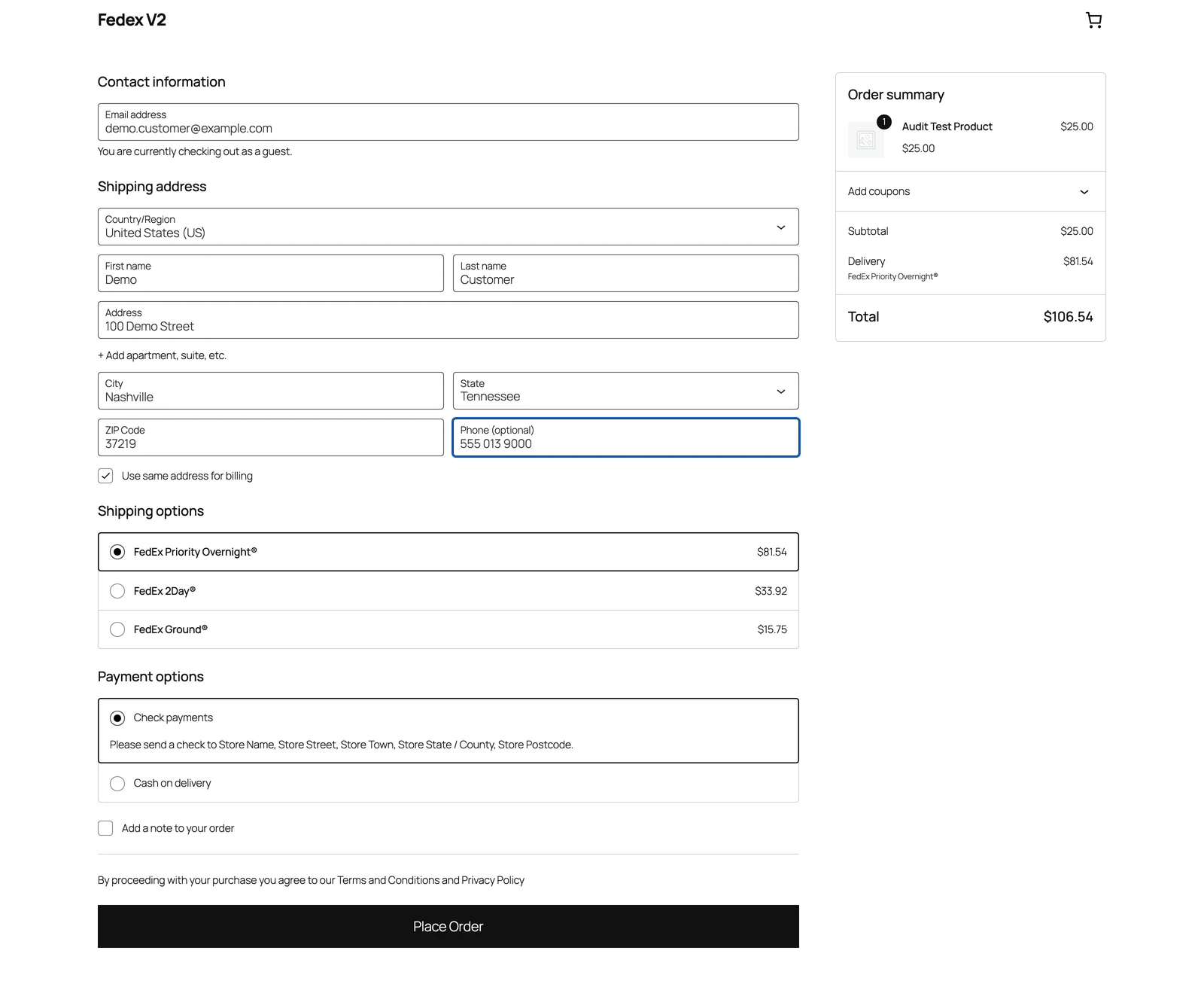 Checkout showing one shipping option per FedEx service, each with FedEx’s own service name and price.
The plugin never adds anything to the price. There is no handling fee or markup setting anywhere, and the amount shown is exactly the amount FedEx returned.
Two more things to know:
Checkout showing one shipping option per FedEx service, each with FedEx’s own service name and price.
The plugin never adds anything to the price. There is no handling fee or markup setting anywhere, and the amount shown is exactly the amount FedEx returned.
Two more things to know:
- Prices only. Checkout shows prices, not delivery-date estimates. FedEx’s reply contains estimated delivery information, but the plugin does not display it in this version.
- Any checkout style. This works on the classic WooCommerce checkout and on the newer block-based checkout.
Limit which services appear
By default, customers see every service FedEx returns for the shipment. To offer only some:- Go to WordPress Admin → FedEx Shipping → Settings and open the Shipping tab.
- In the Shipping Methods list, select the services you want to offer. Leave the list empty to show everything FedEx returns.
If your selected list filters out every service FedEx returned for a shipment, the plugin shows all the returned rates anyway rather than none. A narrow service list therefore does not guarantee a narrow checkout — it only narrows it when FedEx returns at least one service from your list.
Test it
1
Add a product to the cart
Open your store as a shopper — for example in a private browser window — and add any product to the cart.
2
Enter a matching address
Open the cart or checkout page and enter an address inside the zone you configured.The shipping options appear, including one option per available FedEx service, each with a name and a price.
If your environment is set to sandbox, the prices you see are test prices from FedEx’s sandbox, not the real rates your customers will pay. Sandbox test labels never move real packages either. Switch to production when you go live — see Going live.
When the method does not appear
- The address does not match the zone. WooCommerce offers only methods from zones that match the customer’s address, so check the zone’s regions if rates are missing for a specific address.
- FedEx did not answer. If the price request to FedEx fails — wrong credentials, a FedEx outage, or a network problem — FedEx options simply do not appear, while the other methods in the zone still do. Logged-in admins see a notice on the checkout page with the error text; Troubleshooting explains where the details are logged.
- The day’s quota is used up. When your plan’s daily limit is reached, FedEx rates stop appearing and the checkout message changes to “Checkout limit has been exceeded for today. Please try tomorrow.” See How checkout rates work.
After checkout: Instant or Advanced mode
The Shipping mode setting does not change the rates customers see. It decides what happens after the order is placed:- Instant (default) — a shipping label is purchased automatically. See Instant labels.
- Advanced — a draft shipment is created for you to review and confirm in the admin. See Open Shipments.
What’s next
Shipping settings
Services, rate types, pickup type, and shipping mode.
How checkout rates work
What gets sent to FedEx, remembered prices, and the daily limit.
Troubleshooting
Fixes for “no FedEx rates at checkout” and other common problems.