

- shows live FedEx shipping prices while your customer checks out,
- creates the FedEx label for you after a purchase,
- tracks shipments and lets customers follow their parcel on your site, and
- gives your customers a self-service return portal.
Version 1.2.5 works with WordPress 6.2 or newer, WooCommerce up to 11.2, and PHP 7.4 or newer. See Compatibility.
Who it is for
Store owners who ship with FedEx on WordPress and WooCommerce. You do not need to write code to set it up. When something does need a developer, the documentation says so and points you to the developer reference.The problems it solves
- No more manual price lookups. Customers see real FedEx prices at checkout instead of flat rates you guessed.
- No more retyping addresses into FedEx.com. The label is built from the order. Instant mode creates it automatically; advanced mode gives you an editable draft first.
- Fewer “where is my order?” emails. Tracking pages on your site show customers where the parcel is.
- Returns without email ping-pong. Customers create and print their own return label from your site.
How it works with WordPress and WooCommerce
TeamzLab FedEx Shipping is a plugin: software you add to WordPress to extend what your site can do. This plugin extends the shipping system that already exists in WooCommerce. It does not replace WooCommerce checkout, and it does not replace your other shipping methods. Two WooCommerce words are worth knowing:- A shipping zone is a group of places you ship to, for example “Domestic US” or “Europe”.
- A shipping method is one way of shipping inside a zone. Each method works out its own prices for the customer’s cart.
What you need before installing
- A WordPress site that you can install plugins on.
- WooCommerce installed and configured, with at least one shipping zone.
- A FedEx account.
- FedEx API credentials — a Client ID and Client Secret from your FedEx developer project. See Connecting FedEx credentials.
What the plugin includes
Live rates at checkout
FedEx prices for the services you allow, shown while the customer checks out.
Instant labels
Instant mode buys and files the label automatically when the order is placed.
Open Ship (advanced mode)
Review and edit packages per order, then confirm to create the labels.
Tracking and webhooks
FedEx pushes tracking updates into your store, and tracking shortcodes show a timeline on your site.
Product Box packing
Teach the plugin which products fit which box, so multi-box shipments are packed correctly.
Freight (LTL) — developer client
A FedEx Freight (LTL) API client ships with the plugin for developers. Freight rates are not available out of the box — no settings field and no checkout wiring yet.
Pickup scheduling
Schedule a FedEx pickup from your admin and keep a history of every request.
Return portal
Customers create and print their own return label from a page on your store.
Storefront shortcodes
A tracking form, a FedEx drop-off location finder, and a dimensional-weight calculator you can place on any page.
What you will see in your admin
The plugin adds a top-level admin menu named FedEx Shipping, with these pages:- Shipments & Printings — every label the plugin has created (instant mode).
- Open Shipments — the advanced-mode order list. It replaces Shipments & Printings while advanced mode is switched on.
- Pickup History — pickups you scheduled with FedEx.
- Product Box — your box catalog and product-to-box mapping.
- Settings — your credentials and shipping options, in five tabs: Authorization, Tracking, Account, Shipping, and Labeling.
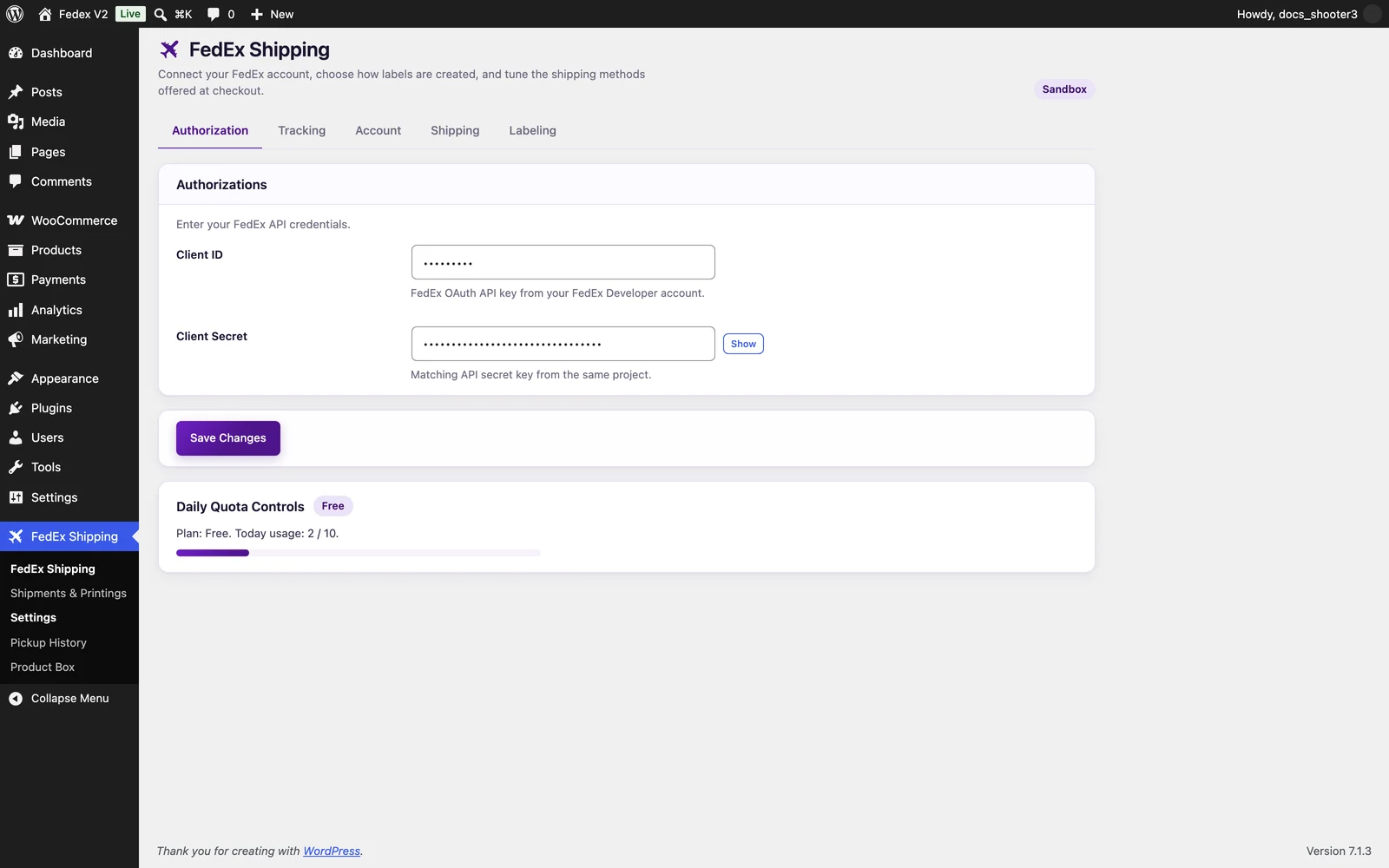 The Authorization tab, where your FedEx API credentials go.
The plugin also adds a Recent FedEx shipments widget to the WordPress dashboard, so your latest shipments are visible as soon as you log in.
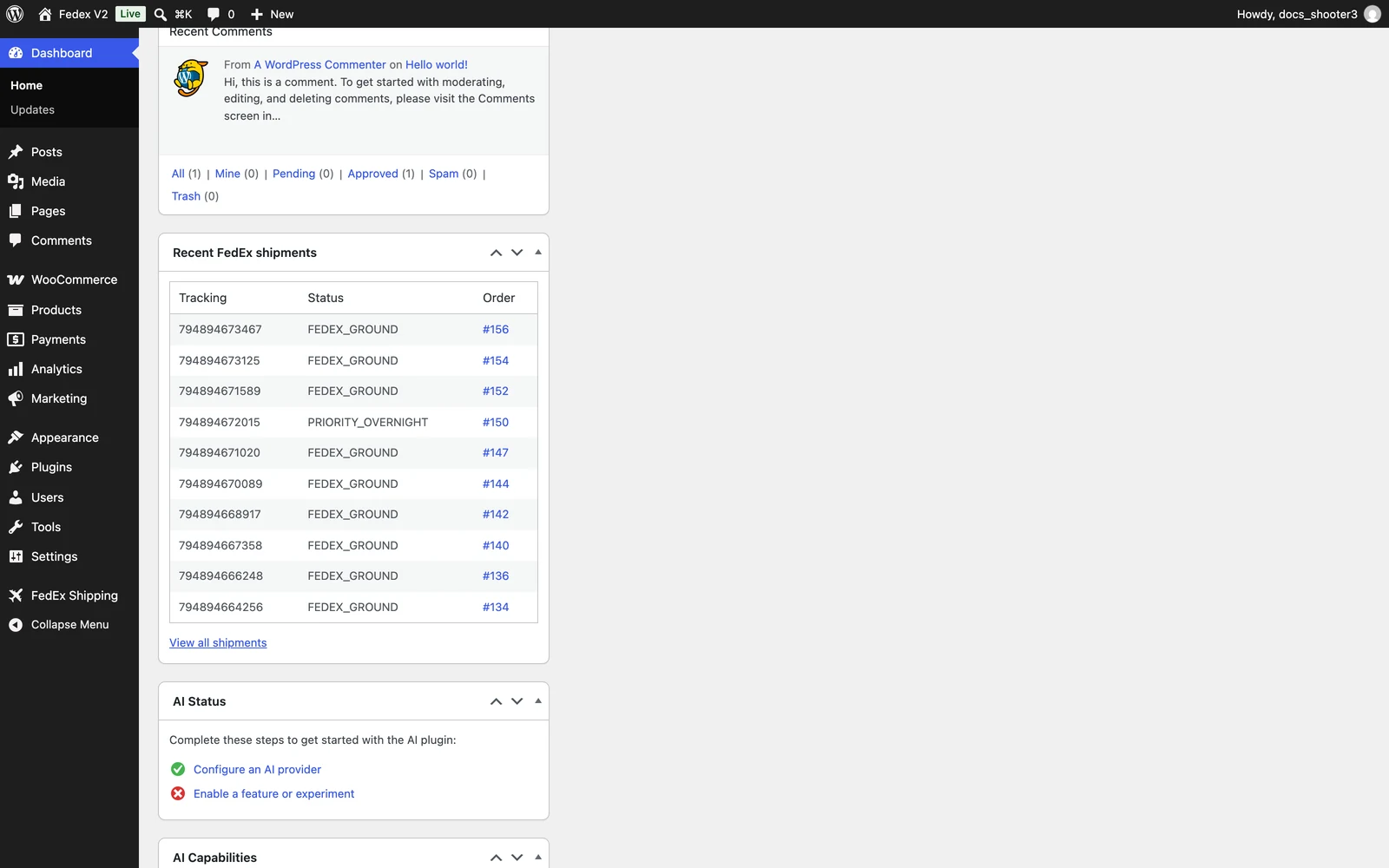 The Recent FedEx shipments widget on the WordPress dashboard.
How it fits together
- A customer checks out, and WooCommerce asks the plugin for shipping prices for that customer’s address.
- The plugin asks FedEx for live rates and shows them at checkout.
- After the order is placed, the plugin creates the shipment with FedEx and saves the label in your admin. In instant mode this happens automatically at checkout; in advanced mode you confirm the shipment yourself.
What the plugin does not do
So you are not surprised later, here is what the plugin does not do:- It does not subscribe to FedEx webhooks for you. You copy the webhook URL from Settings → Tracking and paste it into your FedEx developer project yourself. See Tracking webhooks.
- It cannot void an advanced shipment after you confirm it. You can cancel an Open Ship draft before you confirm it, and you can cancel instant-mode shipments from the shipments list. A confirmed Open Ship shipment cannot be canceled from the plugin.
- It does not show tracking in customer emails or in My Account. The customer’s order email contains the tracking number and a link to the label. Ongoing status updates do not appear in WooCommerce emails or on the customer’s account page.
- It has no handling-fee or markup setting. Checkout shows the prices FedEx returns. You cannot add your own margin from the plugin’s settings.
- It does not block PO box addresses, and it has no residential or business switch. Residential pricing applies only when FedEx itself returns a Home Delivery service.
- The return portal does not email the return label to your customer. The customer sees and prints the label on your site, and a copy is stored in your admin. There is also no separate returns admin page — returns happen on the storefront.
- There is no tracking re-sync button. If a status looks stale, reload the tracking page on your site or check the shipment on fedex.com.
Where to start
Quick start: your first test label
From zero to a working sandbox test label in about 15 minutes.
Installation
Install and activate the plugin on your WordPress site.
Connecting FedEx credentials
Create a FedEx API project and enter your keys, account, and address.
Support
Troubleshooting
No rates at checkout, missing labels, and where the WooCommerce logs are.
FAQ
Short answers to the questions store owners ask most.
Glossary
Plain-English definitions for the shipping and API terms used in these docs.