

Where tracking appears
The shipments list (you and your staff)
In WordPress Admin → FedEx Shipping → Shipments & Printings, every shipment row shows its tracking number in the Tracking ID column. (This page is visible in Instant shipping mode.) Click Track in the Track Parcel column and a popup opens with a Shipment Details card:
The button relabels to Track Again after the first click. Every click asks FedEx for live data, so what you see is the current state of the parcel, not a stored snapshot.
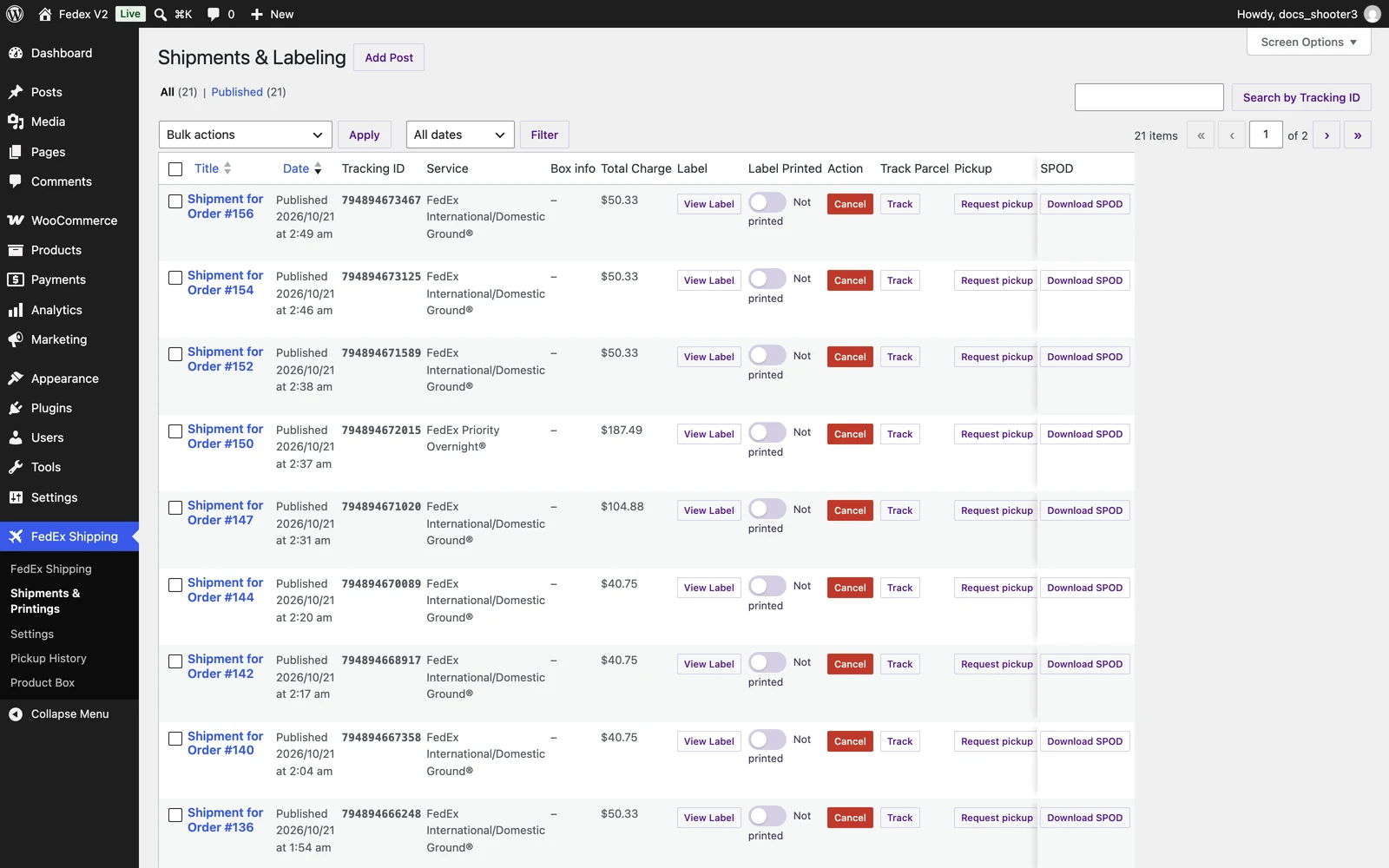 The Shipments & Printings list. The Track Parcel column sits on the right side of the table; the popup it opens is not shown in this screenshot.
The WooCommerce order
The tracking number is also saved on the WooCommerce order itself. The plugin does not add a tracking panel to the order screen in Instant mode, so your staff track from the shipments list instead. In Advanced mode, the order’s FedEx Open Ship box shows a Master tracking link that opens FedEx’s public tracking page in a new tab. WooCommerce’s own order emails and the customer’s My Account page do not show tracking in this version.Your customers
Customers meet tracking in two ways:- The “Your Shipment Has Been Created” email that goes out after an instant-mode label is created (about 5 minutes later). It includes the tracking number and a link to the label.
- Whatever you put in front of them with the shortcodes below — for example, a “Track your order” page. Your website person can copy the ready-made embed code from the shortcodes reference.
One-time setup
Live tracking lookups need their own credentials before they work.1
Open the Tracking tab
Go to WordPress Admin → FedEx Shipping → Settings and click the Tracking tab.
2
Enter the Tracking credentials
Enter your Tracking Client ID and Tracking Client Secret in the Tracking API Authorizations section. Use the pair from the FedEx project that has the Tracking API enabled — these are separate from the main credentials on the Authorization tab.
3
Save
Click Save Changes. WordPress reloads the page and shows a Settings saved. confirmation. (This button saves every Settings tab at once, not just the one you are on.)
4
Switch on automatic updates (recommended)
In the Tracking Webhooks (AIV) section, click Copy next to the webhook URL, enter a Webhook Shared Secret, and save. Then paste the copied URL into your FedEx developer project so FedEx pushes each scan to your store. The plugin does not register this subscription for you — the full walkthrough is in Tracking webhooks.
Empty Tracking fields fail quietly. Nothing on the Settings page warns you if Tracking Client ID or Tracking Client Secret is left empty. Stored webhook updates still display, but live lookups stop working and visitors just see “No tracking details available yet. Please try again later.”
Tracking form — [fshipping_track]
Renders a form where any visitor enters a FedEx tracking number and sees the current shipment status.
The form also accepts
?fshipping_tracking=<number> as a query parameter, so you can link Track this order straight to results. Lookups run through the Tracking credentials you saved in One-time setup.
Order timeline — [fshipping_tracking_timeline]
Renders the full scan-by-scan timeline for one shipment of a specific order.
The timeline shows the scans FedEx has pushed to your store (see Tracking webhooks) — it displays stored scans only. Each scan is recorded as it arrives, so the timeline keeps the full history of the shipment.
 The scan-by-scan timeline a customer sees on a tracking page.
Typical placements
- Order-received page or customer account: add
[fshipping_tracking_timeline]via a template or a block that passes the order ID. - A generic “Track your order” page:
[fshipping_track].
?fshipping_email=...) — or to a logged-in store manager. Your website person handles that when embedding the shortcode.
What tracking cannot do (in this version)
No manual re-sync. There is no button, scheduled task, or command that re-pulls a shipment’s tracking history. Updates arrive when FedEx sends them: each webhook delivery is added to the timeline automatically, and the admin Track button asks FedEx for live data on every click. If updates pause, they resume by themselves at the next scan — there is nothing to restart.
Sandbox shipments look empty. Test labels created in sandbox never move real packages, so FedEx may never send scans for them. An empty timeline or a “no details” message for a sandbox shipment is normal — it does not mean your setup is broken.
What’s next
Tracking webhooks
Feed scans into the timeline automatically and register the webhook URL with FedEx.
Shipments & Printings
The admin list behind the Track Parcel popup — labels, pickups, cancels, and statuses.
Troubleshooting
What to check when tracking stays empty or lookups fail.